Start with a Scene or Photo
Choose Text to Video for a new setting, or Image to Video for an existing subject. Write a concise scene description or upload a clear photo, then explain the movement you want to see.
 AI Photo Editor
Give a portrait, product, or imagined world a sense of movement. Start with text or a photo, then describe the action, camera, and sound for your short video.
Give a portrait, product, or imagined world a sense of movement. Start with text or a photo, then describe the action, camera, and sound for your short video.
Grok Imagine Video turns a written scene or still image into a moving clip. A portrait can become a quiet cinematic moment, a product photo can inspire a reveal, and an illustrated world can gain movement and atmosphere. Describe what changes over time instead of only listing what appears in the frame.
This page currently selects Grok Video 1.5 by default for text-to-video and image-to-video creation. Choose text or image input, direct a focused action, and use the duration, resolution, and framing options shown in the generator before reviewing the generated visuals and sound.
Choose Text to Video for a new setting, or Image to Video for an existing subject. Write a concise scene description or upload a clear photo, then explain the movement you want to see.
Select Grok Imagine in the model menu. Describe one main action, the camera direction, and any intended sound. Use the duration, resolution, and framing options shown for the selected model, then generate.
Watch the full clip and listen to its sound. Check faces, product details, and camera movement before downloading. Refine the prompt when you want a different pace, atmosphere, or composition.
A strong reference gives your video a visual starting point. Use a portrait, an object on a tabletop, or a landscape to establish the scene, then add a focused action such as a glance, drifting steam, or wind moving through fabric. Keep the motion proportionate to the subject so the original visual idea remains easy to recognize.
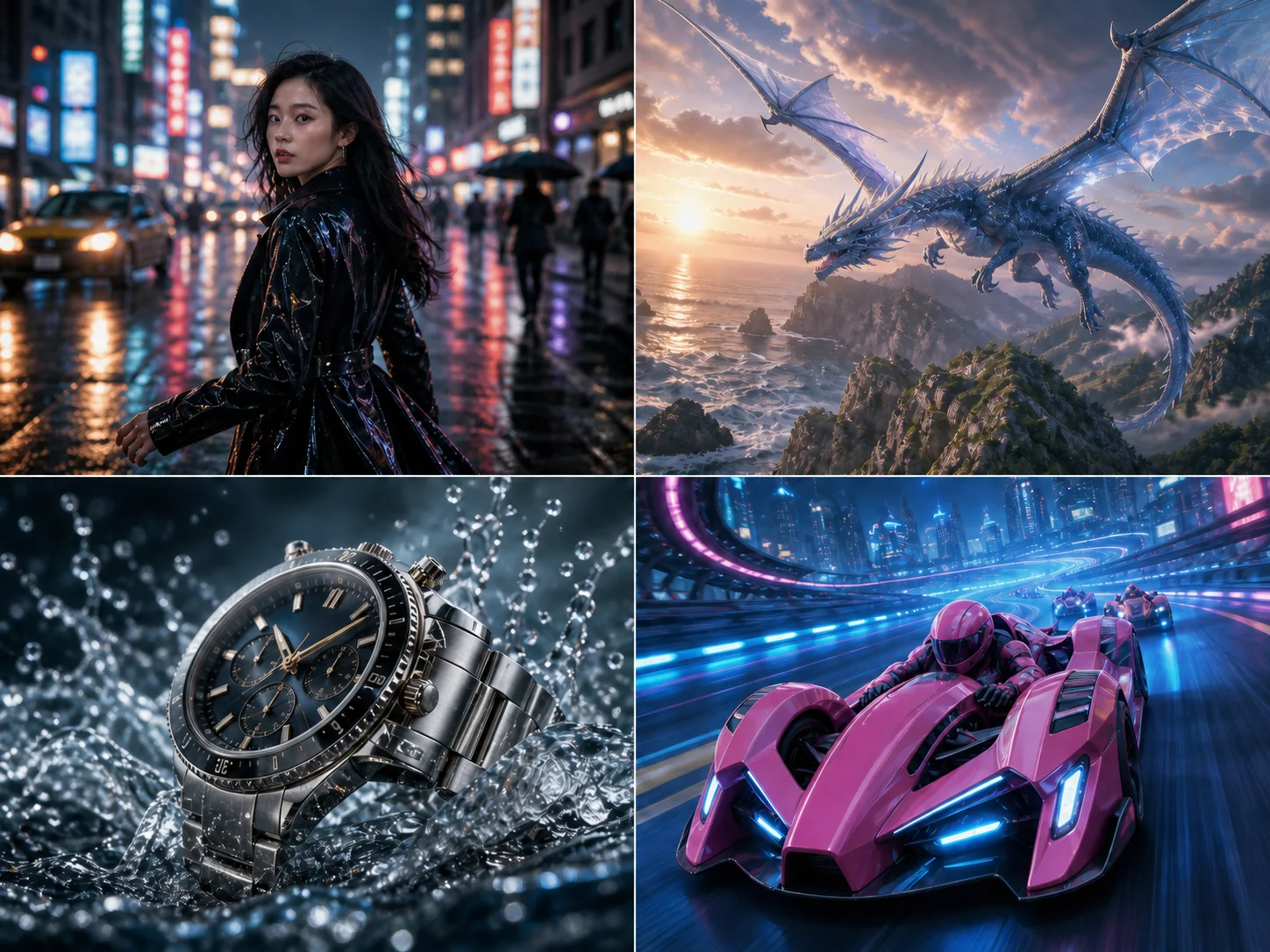
Develop a rain-soaked street portrait, a fantasy landscape, a polished product shot, or a stylized racing scene from the same simple workflow. Describe the material, lighting, and atmosphere that make each idea distinctive. Text input lets you imagine a fresh setting, while a photo can anchor an existing look without requiring you to build every element from scratch.
Guide attention with a gentle push-in, a slow pan, or a tracking movement that follows the subject. Pair the camera direction with a clear action so the clip communicates one idea rather than several competing instructions. This approach is useful when exploring Grok Imagine Video 1.5 examples or developing your own shots with the available Grok model.
Describe the sound that belongs with the visual, such as rain on pavement, an engine passing, or a quiet room tone. Grok Imagine supports native audio alongside generated video, helping a short scene feel more complete. Listen carefully before using the clip, since dialogue, sound timing, and visual details may need another generation to match your intention.
Create visuals faster without design skills. Turn ideas into images, thumbnails, social posts, and creative assets in seconds.
Accelerate your creative workflow. Use AI Photo Editor to generate concepts, references, and visual directions, then refine them into production-ready designs.
Produce high-converting visuals on demand. Create ads, campaign visuals, and branded images quickly.
Yes. The generator currently selects Grok Video 1.5 by default for both text-to-video and image-to-video creation. Available duration, resolution, and input options are shown directly in the generator.
Yes. Select Text to Video and describe the setting, subject, and action. Image to Video is useful when you already have a portrait, product photo, or illustration that should guide the scene.
Yes. Grok Imagine supports native audio with video. Describe relevant ambience or sound in the prompt, then review the result. Precise dialogue and sound timing are not guaranteed.
Not always. A clear reference helps guide appearance, color, and composition, but generation can change details across frames. Use restrained motion and review faces, hands, lettering, and product shapes before publishing a clip.
Yes. Choose a duration from the options shown for the selected model, and describe the camera movement in your prompt. Keep one main action per clip. Review the result and simplify conflicting instructions if the motion does not match your intention.
Create stunning AI videos from text or images with multiple models.
Google image generation

OpenAI image generation
ByteDance video generation
Google video generation
Kuaishou video generation

xAI image & video generation
AI Photo Editor is your go-to AI video toolkit for generating, editing, and enhancing videos.
Turn a written idea into a moving scene.
Bring motion to a portrait, product photo, or illustration.
Explore short video creation with Grok Imagine.
Use a motion reference to guide character animation.
Give a portrait a moving, painting-inspired treatment.
Transform a dog photo into a playful dance clip.
Start with a visual idea, add a clear action, and explore a short video with the available Grok Imagine model.