Add Text or an Image
Write a focused prompt describing the subject, action, environment, camera movement, lighting, mood, pacing, and sound. For image-to-video, upload a clear image that establishes the subject and opening composition.
 AI Photo Editor
Enter a scene prompt or upload a reference image, then create a polished video with natural movement, coherent shots, stable subjects, and synchronized sound.
Enter a scene prompt or upload a reference image, then create a polished video with natural movement, coherent shots, stable subjects, and synchronized sound.
Kling 3.0 Turbo transforms written scene descriptions and still images into dynamic video clips. It interprets subject action, camera movement, lighting, atmosphere, pacing, and sound direction to build a coherent moving scene from your creative input.
On AI Photo Editor, you can start with text-to-video for an open-ended concept or use image-to-video to preserve the source subject and composition while adding movement. The faster workflow suits ad variations, social clips, product concepts, storyboards, and repeated creative testing.
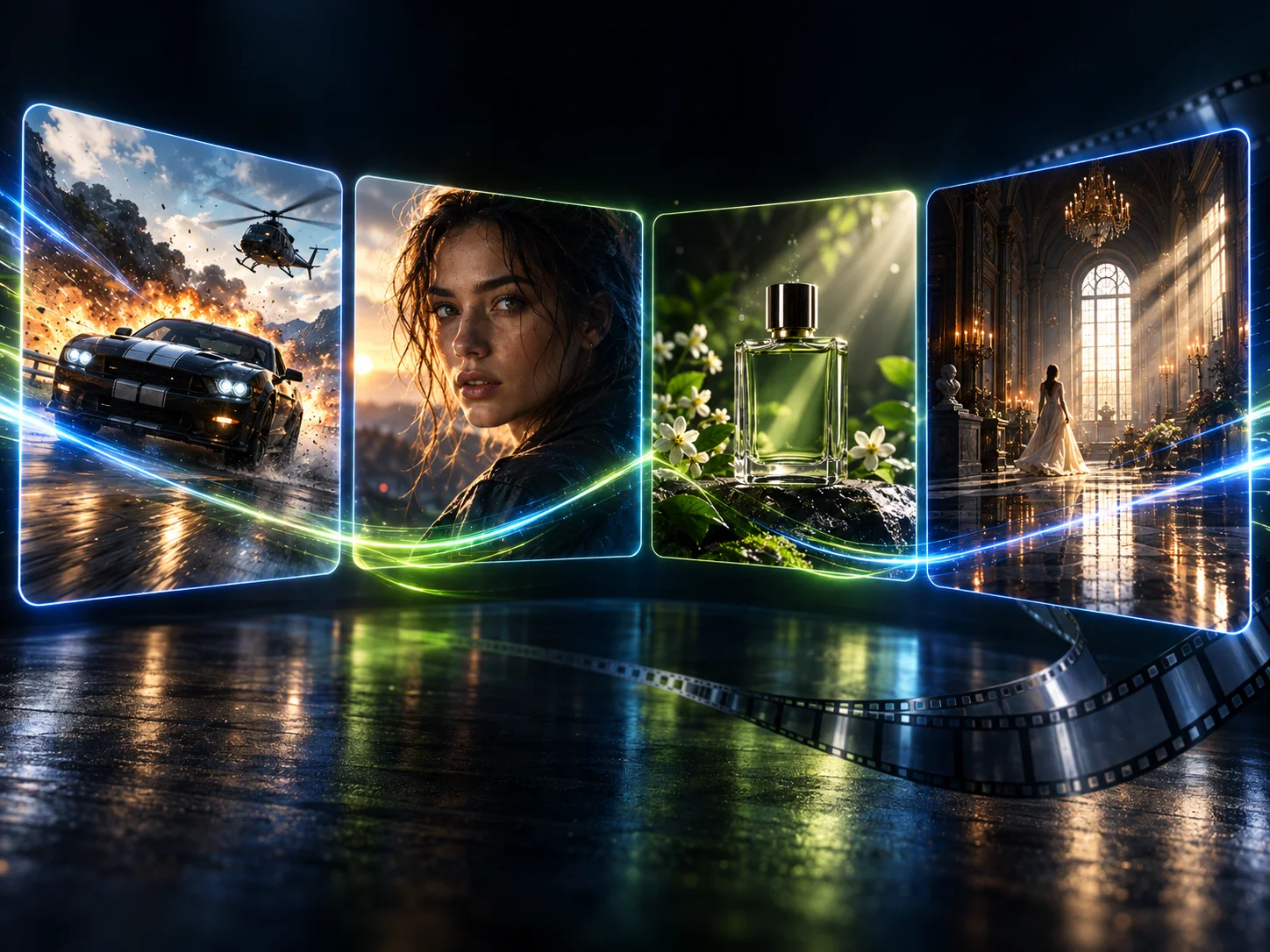
Write a focused prompt describing the subject, action, environment, camera movement, lighting, mood, pacing, and sound. For image-to-video, upload a clear image that establishes the subject and opening composition.
Choose text-to-video or image-to-video, then review the available format and generation settings. Keep the direction coherent and avoid combining too many unrelated actions in one scene.
Review subject stability, motion, shot continuity, visual detail, and sound timing. Refine the prompt or source image when needed, generate another version, and download the result that best matches your idea.
Start with a written scene or animate an existing visual. Text-to-video supports flexible ideation, while image-to-video helps keep the original subject and composition recognizable as motion is added.
Explore different hooks, camera angles, product reveals, scene directions, and visual styles with a faster generation workflow. It is useful when campaigns or production teams need multiple drafts for review.
Detailed direction helps subjects move naturally while structured scene ideas retain clearer continuity across shots. This supports short narratives, storyboards, branded clips, and cinematic concepts.
Describe dialogue, ambient sound, rhythm, or effects together with the visual action. Clear audio direction helps timing, character performance, and scene movement feel more closely synchronized.
Create visuals faster without design skills. Turn ideas into images, thumbnails, social posts, and creative assets in seconds.
Accelerate your creative workflow. Use AI Photo Editor to generate concepts, references, and visual directions, then refine them into production-ready designs.
Produce high-converting visuals on demand. Create ads, campaign visuals, and branded images quickly.
Kling 3.0 Turbo is a faster model in the Kling 3.0 family for generating videos from text prompts or still images. It focuses on efficient iteration while retaining polished visuals, natural movement, scene continuity, and audio-visual alignment.
Yes. Choose text-to-video and describe the subject, action, environment, camera movement, lighting, pacing, visual style, and sound direction. A focused scene description gives the model clearer creative guidance.
Yes. Choose image-to-video, upload a clear source image, and describe the movement, camera behavior, atmosphere, and sound you want. The image establishes the subject and starting composition for the clip.
It works well for social clips, ad variations, product motion concepts, cinematic scenes, short narratives, character moments, and storyboard previews. The faster workflow is especially useful when you need to compare several creative directions.
Describe one coherent scene with a clear subject, action, setting, viewpoint, camera movement, lighting, mood, pacing, style, and sound cues. Keep essential constraints direct, then refine one element at a time after previewing the output.
Create stunning AI videos from text or images with multiple models.
Google image generation

OpenAI image generation
ByteDance video generation
Google video generation

Kuaishou video generation

xAI image & video generation
AI Photo Editor is your go-to AI video toolkit for generating, editing, and enhancing videos.
Create expressive video scenes with cinematic movement and visual continuity using the broader Kling 3.0 workflow.
Explore reference-driven video creation with broader multimodal control for subjects, scenes, and creative direction.
Guide character and camera movement with motion-focused controls for more deliberate animated performances.
Turn portrait direction and audio into expressive digital-human video for presentations and social content.
Match visible mouth movement to spoken audio for character, dialogue, and talking-person video workflows.
Generate cinematic videos from text or images with realistic motion, visual control, and synchronized audio.
Turn a written idea or reference image into a polished video with smooth movement, coherent shots, stable visual direction, and synchronized sound.