Add Your Creative Direction
Describe the subject, scene, composition, lighting, colors, mood, style, and any important visual constraints. Upload reference images when you want to preserve or reinterpret specific content.
 AI Photo Editor
Turn a text prompt or optional visual reference into a polished image. FLUX 3 follows natural-language edits, keeps key subjects recognizable, and helps you explore new compositions, settings, moods, and styles.
Turn a text prompt or optional visual reference into a polished image. FLUX 3 follows natural-language edits, keeps key subjects recognizable, and helps you explore new compositions, settings, moods, and styles.
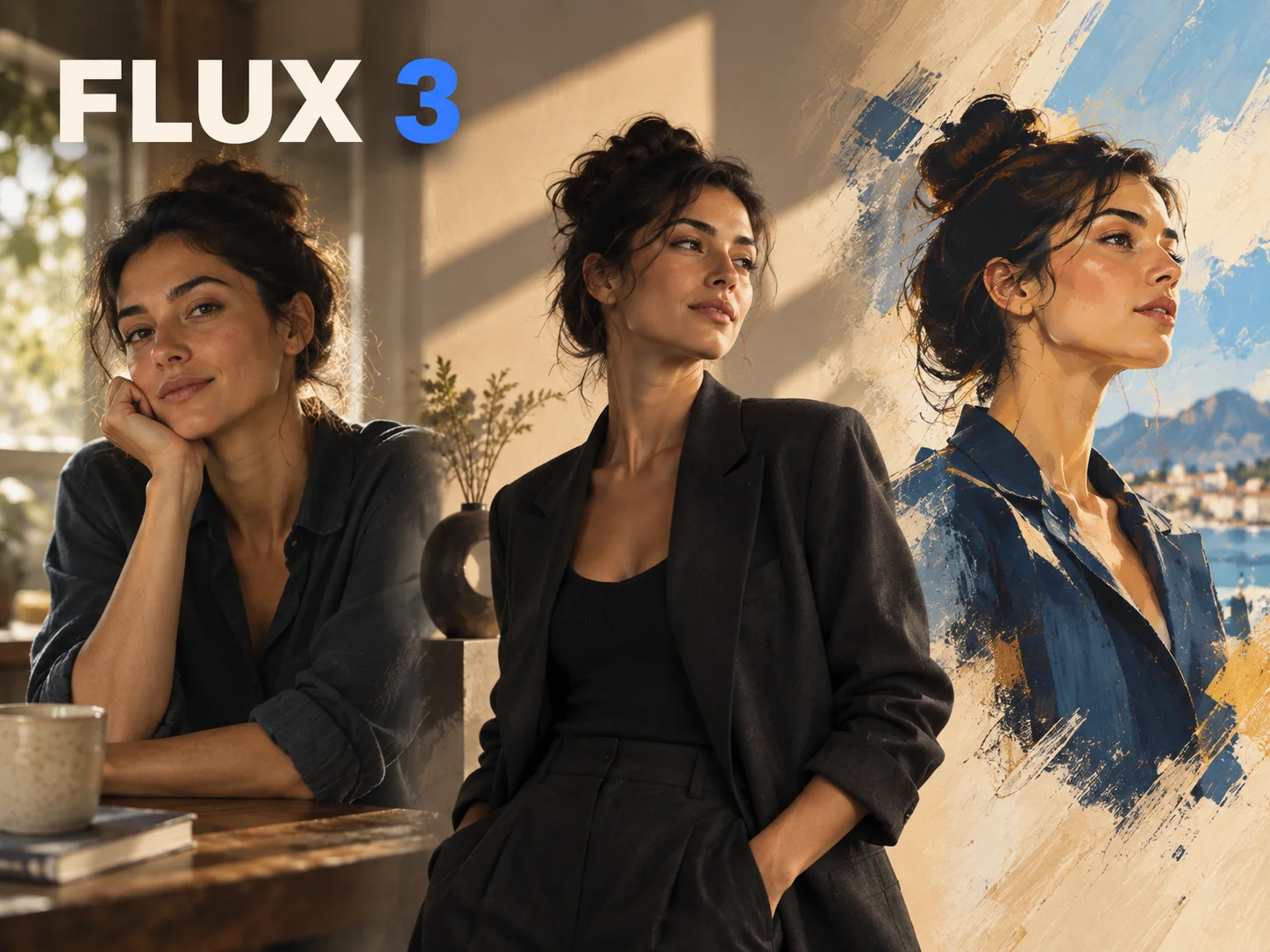
FLUX 3 turns a written idea or visual reference into an image you can evaluate and refine. Describe the subject, composition, setting, mood, and style, then use natural-language instructions to move the result toward a clearer creative direction.
On AI Photo Editor, you can develop product concepts, portraits, campaign directions, posters, and social graphics from a prompt or existing image. Keep refining the subject, background, visual mood, or style without rebuilding the concept from the beginning.
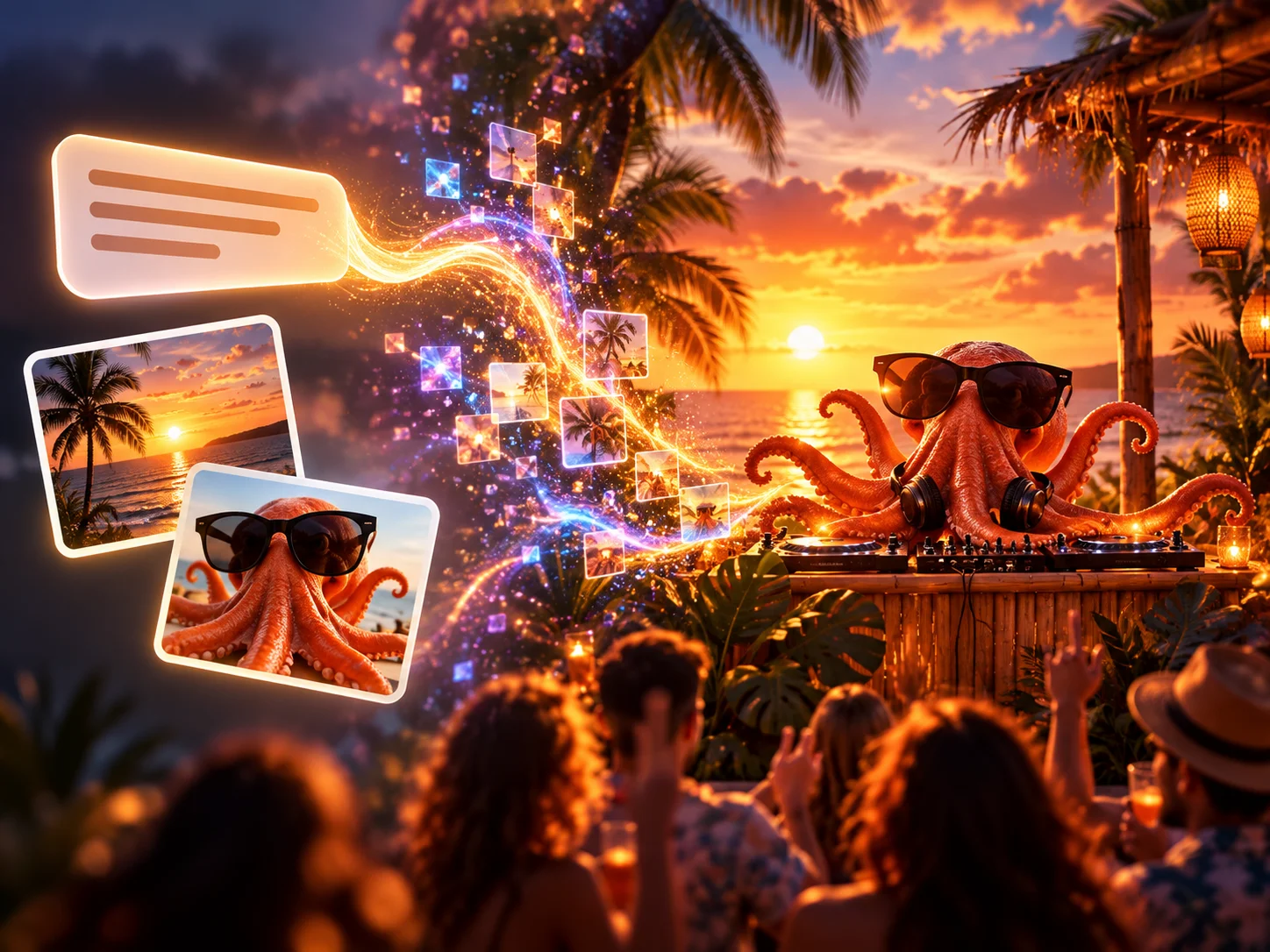
Describe the subject, scene, composition, lighting, colors, mood, style, and any important visual constraints. Upload reference images when you want to preserve or reinterpret specific content.
Choose an aspect ratio and explain what should stay recognizable, what should change, and how multiple references should work together. Generate after the prompt reflects the intended result.
Review the subject, composition, text, small details, and consistency with your references. Adjust the instructions when necessary, then download the version that best fits your project.
Generate a new concept from a written prompt, or use uploaded images to guide an existing subject, product, composition, or style. Optional references provide direction without blocking text-only creation.
Describe the visual change you want instead of rebuilding the entire image manually. State what should remain familiar and what should move toward a new setting, mood, color palette, or art direction.
Use shared references and consistent instructions when exploring several versions of a character, product, or campaign concept. This makes visual directions easier to compare and refine.
Turn an early idea into visual options for concept boards, product pages, posters, portraits, and social posts. Review each result and continue refining rather than treating the first generation as final.
Create visuals faster without design skills. Turn ideas into images, thumbnails, social posts, and creative assets in seconds.
Accelerate your creative workflow. Use AI Photo Editor to generate concepts, references, and visual directions, then refine them into production-ready designs.
Produce high-converting visuals on demand. Create ads, campaign visuals, and branded images quickly.
FLUX 3 is an AI image generation and editing workflow that turns a written idea or reference image into a visual starting point you can refine. It helps explore subjects, compositions, moods, styles, and campaign directions before final production.
No. You can start from a text prompt alone. Reference images are optional and become useful when you want to preserve, edit, combine, or reinterpret a specific person, product, composition, or style.
A portrait, product photo, sketch, or moodboard can anchor the subject, composition, palette, or style. State what should remain recognizable and what may change so the new image stays connected to the source without simply copying it.
Use the image workflow for product concepts, portraits, posters, campaign directions, story frames, and social graphics. Results work best as visual options that you inspect and refine for the final use case.
Yes. Add an existing image and describe the change in plain language. You can redirect the background, mood, color, composition, or style while identifying the subject and visual traits that should remain familiar.
Create stunning AI videos from text or images with multiple models.
Google image generation
OpenAI image generation
ByteDance video generation
Google video generation
Kuaishou video generation

xAI image & video generation
AI Photo Editor is your go-to AI video toolkit for generating, editing, and enhancing videos.
Create and edit high-fidelity images from detailed prompts and references.
Generate and edit detailed images with text prompts and visual references.
Edit images with contextual instructions while preserving important visual details.
Create and edit detailed images with prompt and reference guidance.
Create expressive visuals and edit images with natural-language direction.
Turn prompts into creative images for concepts, stories, and social posts.
Turn a written idea or optional reference images into visual directions you can inspect and refine. Explore concepts, compositions, subjects, and styles in one focused image workflow.