Add Text or an Image
Write a prompt describing the subject, setting, action, camera movement, lighting, mood, pacing, and sound. For image-to-video, upload a clear image that establishes the subject and starting composition.
 AI Photo Editor
Describe a scene with text or upload a reference image, then generate a cinematic clip with natural movement, coherent subjects, strong prompt following, and synchronized sound.
Describe a scene with text or upload a reference image, then generate a cinematic clip with natural movement, coherent subjects, strong prompt following, and synchronized sound.
Google Veo 3.1 turns written descriptions and still images into polished moving scenes. It interprets the subject, setting, action, camera direction, lighting, pacing, and audio cues so each prompt can guide both the visual sequence and its sound.
On AI Photo Editor, the workflow supports cinematic concepts, product shots, character moments, advertisements, social clips, and visual story drafts. Text-to-video offers a flexible starting point, while image-to-video anchors the generated motion to an existing subject and composition.
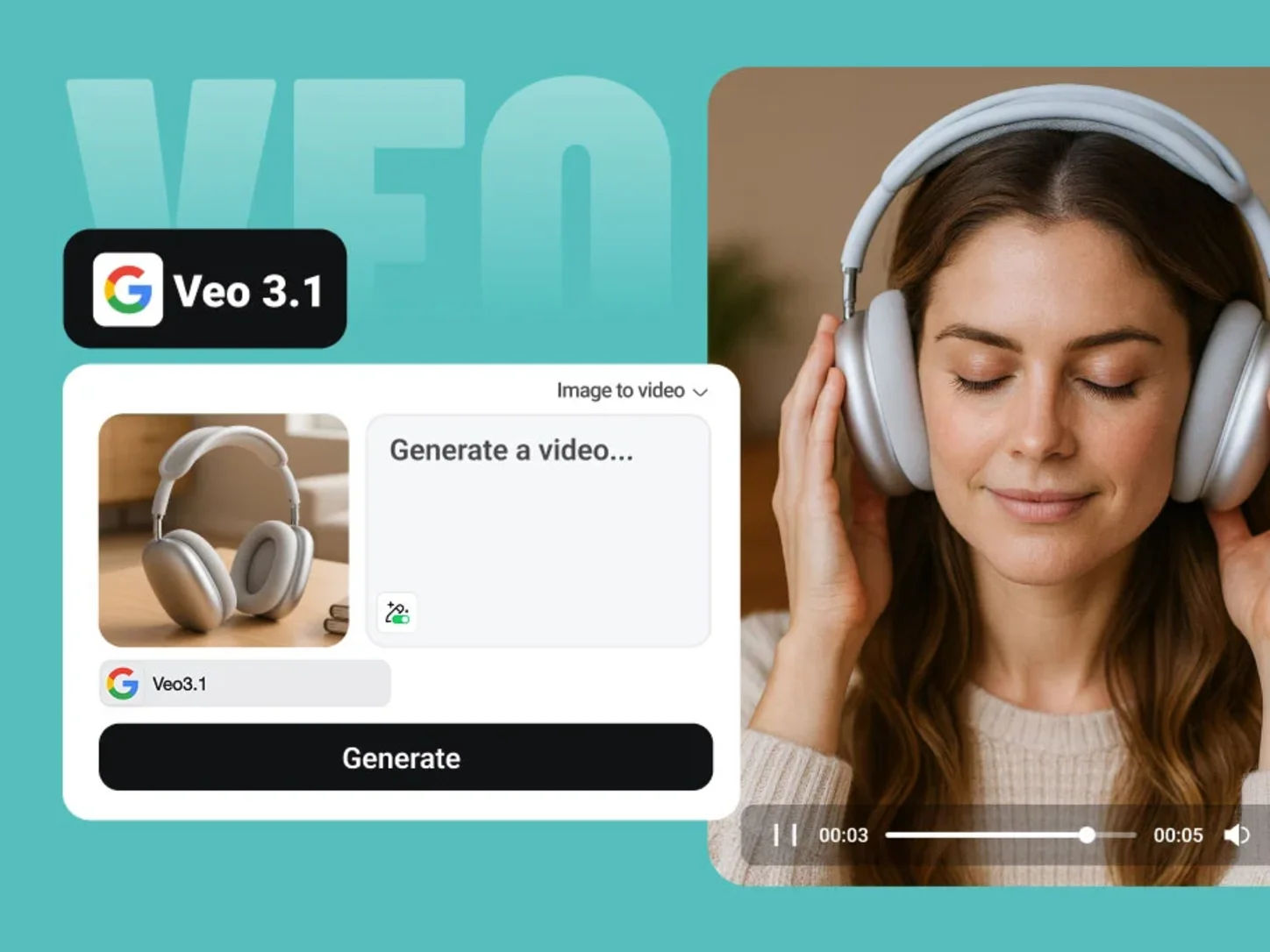
Write a prompt describing the subject, setting, action, camera movement, lighting, mood, pacing, and sound. For image-to-video, upload a clear image that establishes the subject and starting composition.
Choose text-to-video or image-to-video, then review the available format and generation settings. Keep the direction clear and focused on one coherent scene before starting the generation.
Review motion, subject consistency, camera behavior, visual detail, and audio timing. Refine the prompt or reference image when needed, generate another version, and download the strongest result.
Start with a detailed scene description or animate a reference image. Both workflows let you define the subject, visual direction, movement, and atmosphere without filming the original footage.
Use a clear reference and focused motion instructions to help characters, products, or objects remain recognizable throughout the clip. Greater continuity makes narrative and branded scenes easier to use.
Describe dialogue, ambient sound, music, or effects together with the visual action. Context-aware audio can follow the scene timing and make the generated clip feel more complete from the first preview.
Specify camera movement, viewpoint, subject action, lighting, and pacing to shape the shot. Detailed direction helps transform a broad idea into a clearer visual sequence with polished motion.
Create visuals faster without design skills. Turn ideas into images, thumbnails, social posts, and creative assets in seconds.
Accelerate your creative workflow. Use AI Photo Editor to generate concepts, references, and visual directions, then refine them into production-ready designs.
Produce high-converting visuals on demand. Create ads, campaign visuals, and branded images quickly.
Google Veo 3.1 is an AI video generation model developed by Google DeepMind and a successor to Veo 3. It turns text prompts or input images into cinematic clips, with improved prompt understanding, natural motion, and creative control over subjects and scenes.
Yes. Select text-to-video and describe the setting, subject, action, camera movement, lighting, pacing, style, and audio cues. Clear, structured direction helps the model interpret the intended scene.
Yes. Select image-to-video, upload a clear source image, and describe the movement, camera behavior, and audio you want. The image establishes the subject and opening composition for the generated clip.
Yes. The model can generate context-aware native audio, including dialogue, ambient sound, music, and effects. Describe the intended sound and timing in the prompt so it can support the visual action.
Describe one coherent shot with the subject, action, environment, viewpoint, camera movement, lighting, pacing, style, and audio. Keep essential constraints direct, then refine one element at a time after reviewing the result.
Create stunning AI videos from text or images with multiple models.
Google image generation

OpenAI image generation
ByteDance video generation
Google video generation

Kuaishou video generation

xAI image & video generation
AI Photo Editor is your go-to AI video toolkit for generating, editing, and enhancing videos.
Explore the broader Veo workflow for cinematic video creation from prompts and visual references.
Create camera-directed AI video scenes with realistic motion and detailed prompt control.
Generate expressive video scenes with cinematic movement and visual continuity.
Turn text or image direction into cinematic video concepts with the Wan workflow.
Generate imaginative moving scenes from text prompts or image-based direction.
Explore prompt-driven video generation for stories, advertisements, and social clips.
Transform a written idea or reference image into a cinematic video with natural motion, consistent visual direction, and synchronized sound.