Add a Character Image and Reference Video
Upload a clear image that shows the character's face, clothing, and body shape. Add a reference video with a visible performer and the complete movement, gesture, or expression sequence you want to transfer.
 AI Photo Editor
Upload a clear character image and a reference performance video, then transfer its body motion and expressions to the character or place the character into the original video scene.
Upload a clear character image and a reference performance video, then transfer its body motion and expressions to the character or place the character into the original video scene.
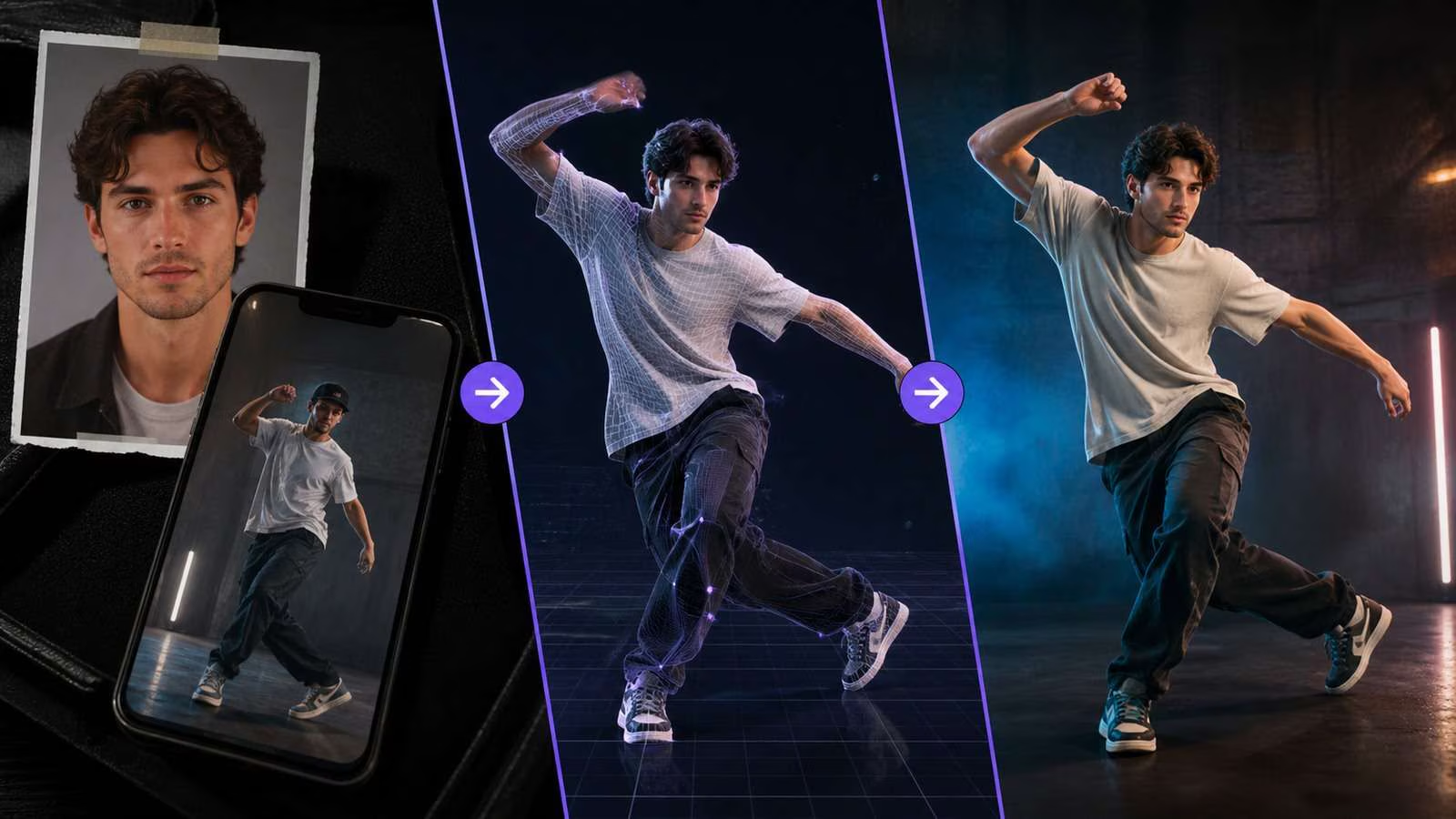
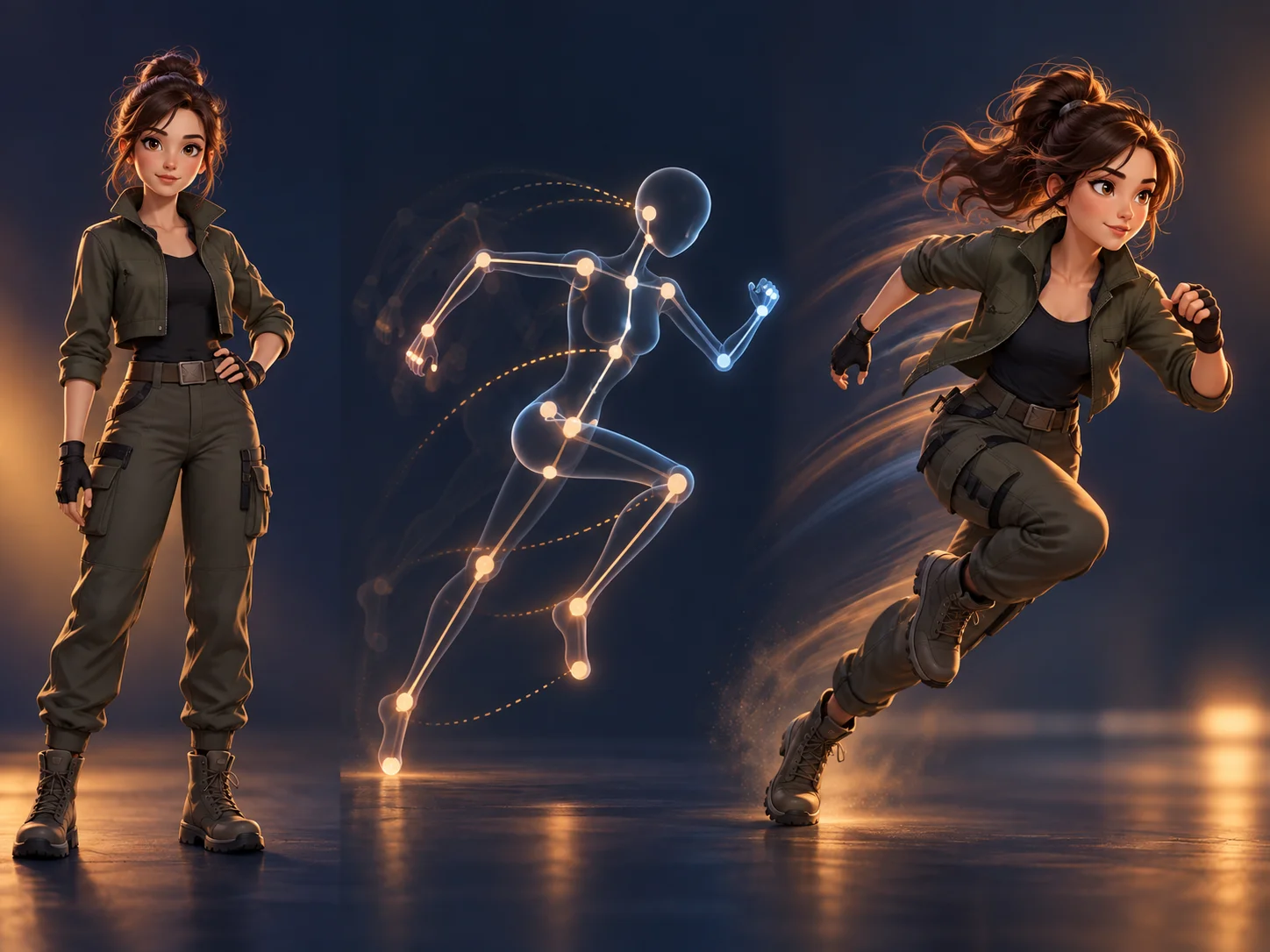
Wan 2.2 Animate combines a character image with a driving video. The image defines the target face, body, clothing, and visual style, while the video supplies the motion path, gestures, expressions, camera framing, and performance timing.
On AI Photo Editor, you can animate the character while retaining the image background, or replace the performer while preserving the driving video's scene and movement. This makes the workflow useful for dance clips, character performances, short narratives, social content, and visual experiments without manual frame-by-frame animation.
Upload a clear image that shows the character's face, clothing, and body shape. Add a reference video with a visible performer and the complete movement, gesture, or expression sequence you want to transfer.
Decide whether to retain the image background while animating the character or keep the video's scene while replacing its performer. Match the image framing to the reference shot, review the settings, and start generation.
Check facial identity, body proportions, hands, clothing, motion timing, and scene continuity. If any detail drifts, use a clearer image or better-matched reference clip, then generate again and download the preferred result.
Use a performance video as the motion source so the generated character can follow body movement, gestures, facial expressions, pose changes, and timing rather than relying on a basic pose sequence.
Let the source image guide facial features, body proportions, clothing, colors, and visual style throughout the animation. Clear, well-framed inputs help reduce unwanted identity drift between frames.
Animate a still character while retaining its original background, or insert that character into the reference video's scene while preserving the source movement, pacing, framing, and environment.
Process the character and movement as a continuous sequence to support smoother animation, clearer action flow, and more coherent scene details with less flicker, shaking, or sudden visual change.
Create visuals faster without design skills. Turn ideas into images, thumbnails, social posts, and creative assets in seconds.
Accelerate your creative workflow. Use AI Photo Editor to generate concepts, references, and visual directions, then refine them into production-ready designs.
Produce high-converting visuals on demand. Create ads, campaign visuals, and branded images quickly.
Wan 2.2 Animate is a character animation and replacement model in Alibaba’s Wan series. Give it a character image and a reference performance video: Move transfers the performer’s motion and expressions to the still character, while Mix replaces the performer in the video while retaining the scene and movement.
Prepare one clear character image and one reference video containing the complete performance you want to transfer. Similar shot framing helps: pair a close-up image with close-up motion and a full-body image with full-body movement.
Animation keeps the character image's background and applies motion from the reference clip. Replacement keeps the reference video's background, camera framing, and movement while swapping its performer for the character from your image.
It is designed to retain recognizable facial features, body proportions, clothing, and visual style while transferring motion. Occlusion, motion blur, rapid turns, or mismatched framing can still cause drift, so review difficult frames carefully.
Use a sharp image with a clearly visible subject, choose a reference clip without heavy obstruction or abrupt cuts, and align their viewpoints and shot sizes. Test a shorter movement first before processing a more complex performance.
Create stunning AI videos from text or images with multiple models.
Google image generation
OpenAI image generation
ByteDance video generation
Google video generation
Kuaishou video generation

xAI image & video generation
AI Photo Editor is your go-to AI video toolkit for generating, editing, and enhancing videos.
Explore another character-animation workflow for combining a character image with a driving performance video.
Transfer movement from a reference performance to a character while guiding body motion and visual consistency.
Generate a coherent video from visual references while maintaining character and style direction.
Create short AI videos from prompts or images with visual continuity and flexible scene direction.
Explore a newer Wan video workflow for cinematic generation and reference-heavy creative projects.
Use character and motion references to guide animated performance with focused movement control.
Combine a character image with a reference performance in AI Photo Editor, transfer motion and expressions, and create a coherent animated character video.