Add Input
Upload the image you want to edit. In the prompt, identify the subject or area precisely, describe the requested change, and state which facial features, product details, colors, lighting, or composition should remain unchanged.
 AI Photo Editor
Upload an image and describe the exact change in natural language. Replace, remove, restyle, or refine selected elements while directing the model to preserve the subject, composition, and details that should stay recognizable.
Upload an image and describe the exact change in natural language. Replace, remove, restyle, or refine selected elements while directing the model to preserve the subject, composition, and details that should stay recognizable.
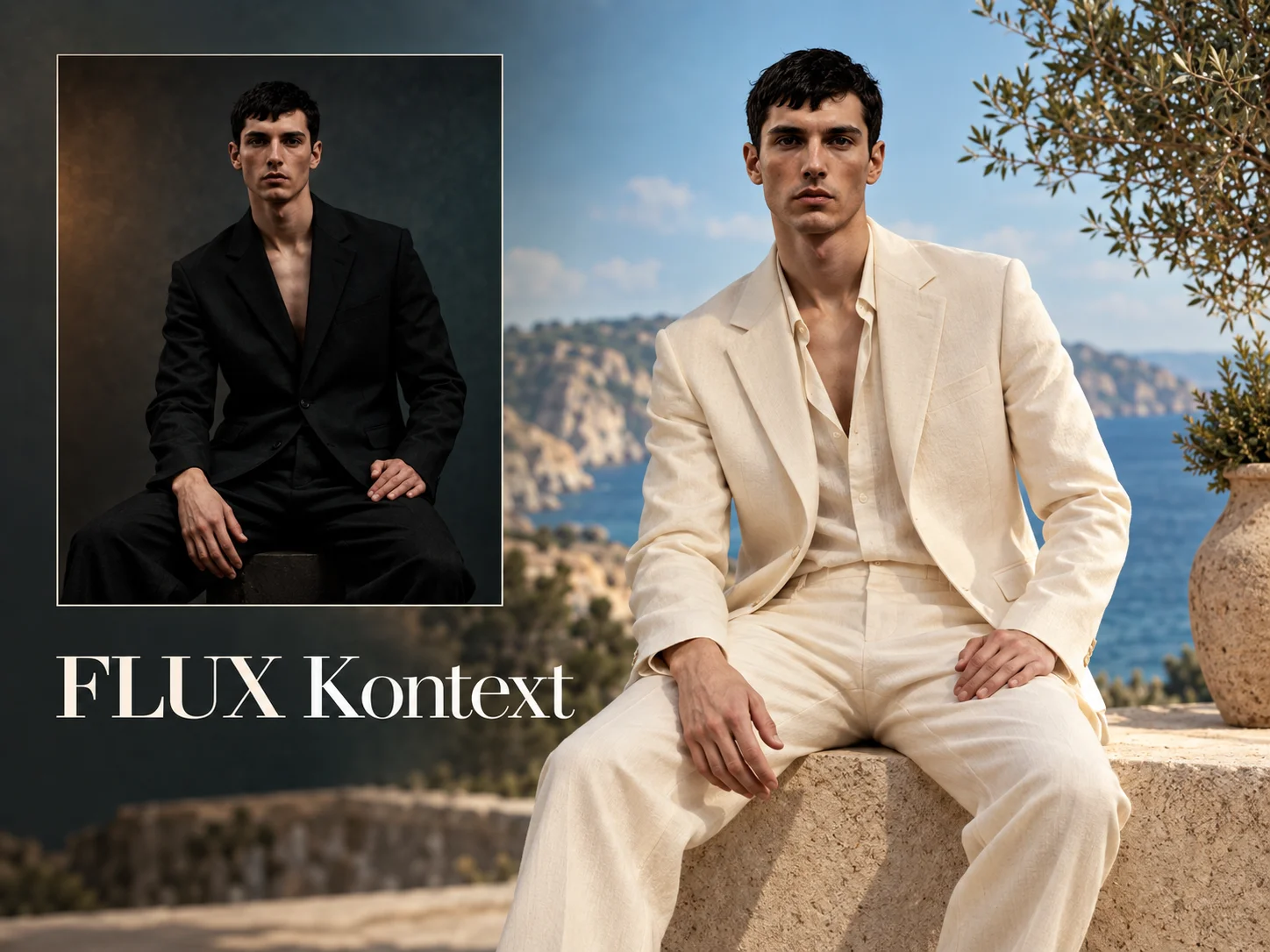
FLUX Kontext is an image editing model that reads both the uploaded picture and a written instruction before producing an updated result. Instead of rebuilding the entire image manually, you can describe a focused change such as replacing an object, changing a background, adjusting a color, restyling a scene, or editing visible text.
On AI Photo Editor, FLUX Kontext supports practical editing workflows for portraits, product images, campaign visuals, concept art, social content, and recurring characters. Clear instructions about what should change and what must remain consistent help the model preserve recognizable features across focused or repeated edits.
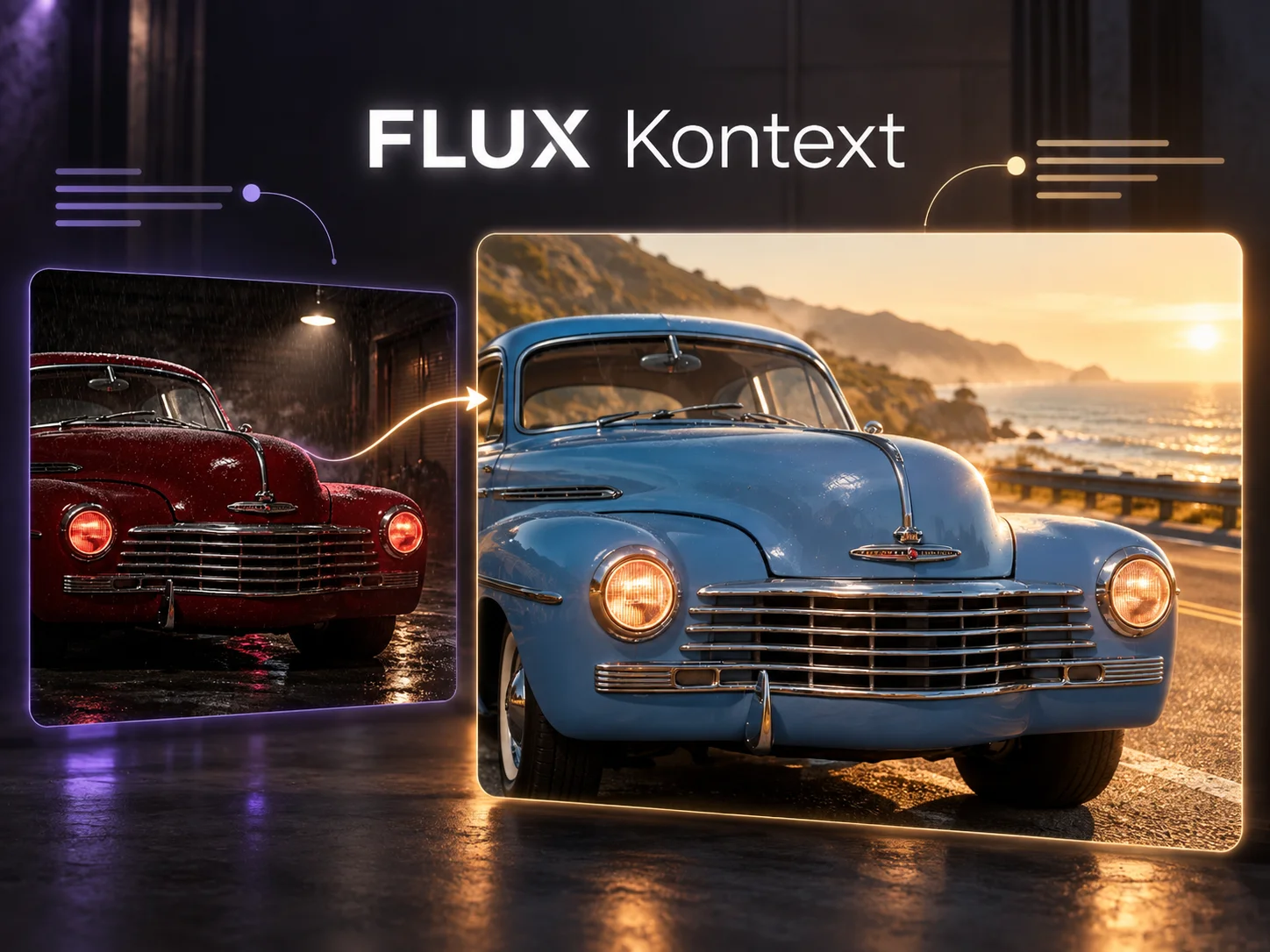
Upload the image you want to edit. In the prompt, identify the subject or area precisely, describe the requested change, and state which facial features, product details, colors, lighting, or composition should remain unchanged.
Choose the available output settings, then generate the edit. Use direct wording for object replacement, background changes, text edits, color adjustments, or style transformation instead of combining unrelated changes in one vague instruction.
Compare the result with the source image. Check identity, hands, edges, product shape, spelling, lighting, and unchanged areas. Refine one specific issue at a time, then download the version that best preserves your intended context.
Describe the visual change you need without manually selecting layers or rebuilding the composition. FLUX Kontext interprets the uploaded image together with the prompt, making common editing requests easier to express and revise.
Tell the model which facial features, clothing, product shapes, poses, colors, or layout details must stay consistent. Specific preservation instructions help reduce unintended drift when changing another part of the image.
Use one editing workflow to replace or remove objects, change environments, adjust colors, update visible words, or reinterpret the visual style. The prompt defines both the requested transformation and the boundaries of the edit.
Break a complex revision into clear, sequential changes. Reviewing each result before the next instruction makes it easier to preserve important context while improving details, composition, or visual direction step by step.

Create visuals faster without design skills. Turn ideas into images, thumbnails, social posts, and creative assets in seconds.
Accelerate your creative workflow. Use AI Photo Editor to generate concepts, references, and visual directions, then refine them into production-ready designs.
Produce high-converting visuals on demand. Create ads, campaign visuals, and branded images quickly.
FLUX.1 Kontext is a generative image model family developed by Black Forest Labs for creating and editing images with text and visual references. It understands the context of a source image, allowing users to replace objects, edit text, transform styles, and refine scenes while preserving important details such as subject identity, product appearance, and composition.
No. You can begin with a text instruction alone, but upload a source image when you want FLUX Kontext to preserve and edit existing subjects, objects, layout, or visual details.
It can support common prompt-based edits such as replacing or removing objects, changing backgrounds, adjusting colors, editing visible text, transforming style, and refining selected details. Results depend on the source image and instruction clarity.
Yes, when the instruction clearly identifies what must remain recognizable. Name the subject directly and specify the face, clothing, pose, product shape, logo placement, colors, or composition that should not change.
Narrow the request to one clear change, identify the target precisely, quote exact replacement text when editing words, and repeat the details that must stay unchanged. Review each result before adding another edit.
Create stunning AI videos from text or images with multiple models.

Google image generation
OpenAI image generation
ByteDance video generation
Google video generation
Kuaishou video generation

xAI image & video generation
AI Photo Editor is your go-to AI video toolkit for generating, editing, and enhancing videos.
Edit and refine images with prompt-guided tools in one visual workspace.
Replace visible words while preserving the surrounding design and composition.
Replace selected objects or areas with new prompt-directed content.
Reinterpret an uploaded image with a different artistic visual direction.
Generate and edit images with OpenAI's image model on AI Photo Editor.
Create and edit detailed, layout-rich images from prompts and references.
Upload a source image, describe the exact change, and refine objects, backgrounds, colors, text, or style while keeping the visual context that matters to your project.