Add Your Text or Image
Choose Text to Video to describe a new scene, or Image to Video to upload a clear reference. Explain what the main subject should do and keep the action focused on one moment.
 AI Photo Editor
Turn a text prompt or photo into a short video. Describe the movement, camera direction, and sound to bring your scene to life.
Turn a text prompt or photo into a short video. Describe the movement, camera direction, and sound to bring your scene to life.
The Grok AI Video Generator turns a written scene or a reference image into a moving clip using Grok Imagine. Start from text when you want to imagine a new setting, or upload a photo when a person, product, or illustration should guide the visual direction. Describe a clear action and how the camera should follow it.
Create a quiet portrait moment, a product reveal, or a cinematic scene with movement and native sound. On AI Photo Editor, choose the input mode and Grok model, adjust the available video settings, and review the result before downloading. Focused prompts make it easier to compare versions and refine the shot.
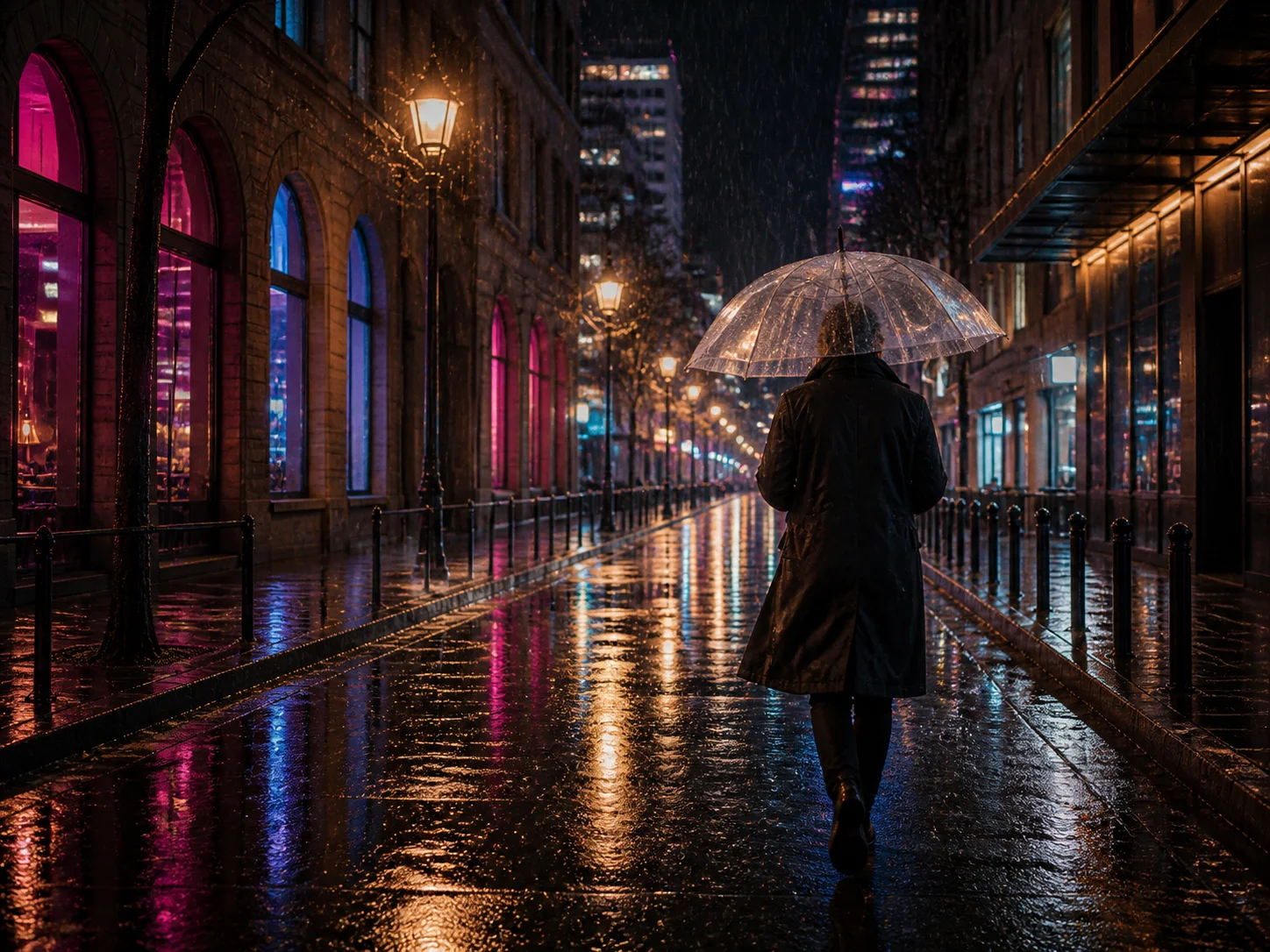
Choose Text to Video to describe a new scene, or Image to Video to upload a clear reference. Explain what the main subject should do and keep the action focused on one moment.
Select Grok Imagine in the model menu. Refine the motion, camera, and sound instructions, then choose the available duration, resolution, and aspect ratio before generating.
Watch the result and listen to the audio. Check the subject, motion, and framing, then download the clip or revise your prompt to explore another version.
Use text to build a scene you have not photographed, or use an image to establish the subject and visual style. The Grok AI Video Generator supports both starting points, so portraits, products, and illustrated concepts can become the basis of a moving shot. A clear reference and focused instructions help guide the result without requiring a complete storyboard.
Describe a slow push-in, a gentle pan, or a subject moving through the frame. Combine that direction with lighting and atmosphere to shape how the scene feels, rather than asking only for a generic animation. Keeping one coordinated action in each clip makes the intended movement easier to communicate and the generated versions easier to compare.
Grok Imagine can generate native audio alongside the moving image. Describe rainfall, footsteps, a calm atmosphere, or another sound that supports the action so the clip has an audible sense of place. Review the generated soundtrack with the visuals, especially when timing or spoken words matter, before using the result in a larger edit.
Choose the available framing and duration to suit a social post, presentation, or creative concept. The Grok Video Generator lets you revise the prompt and test another treatment of the same scene, from a quieter camera move to a more expressive action. Compare subject consistency and composition as you iterate, then keep the version that best communicates your idea.
Create visuals faster without design skills. Turn ideas into images, thumbnails, social posts, and creative assets in seconds.
Accelerate your creative workflow. Use AI Photo Editor to generate concepts, references, and visual directions, then refine them into production-ready designs.
Produce high-converting visuals on demand. Create ads, campaign visuals, and branded images quickly.
Yes. Text to Video creates a scene from your description, while Image to Video uses an uploaded picture as the visual starting point. Choose the matching tab and select Grok Imagine, then describe the action, camera movement, and atmosphere you want.
Grok Imagine supports native audio generation alongside video. Include the intended ambience or sound in your prompt, and listen to the result before downloading. Audio details and their timing can vary, so review spoken words and important sound cues carefully.
Describe the movement in ordinary language, such as a slow push-in toward the subject or a gentle pan across the scene. Pair it with one clear subject action. Avoid conflicting camera directions in the same short clip, and refine the prompt if the result moves differently from what you intended.
Use the options displayed for the selected Grok model and input mode. These settings determine the clip length, output resolution, and framing before generation. Choose enough time for a simple action to unfold, and frame the main subject to suit the screen where the video will appear.
A reference image helps guide the subject's appearance, composition, and style, but it does not guarantee an identical result in every frame. Use a clear photo and restrained motion when likeness matters. Review faces, hands, products, and other important details before sharing the clip.
Create stunning AI videos from text or images with multiple models.
Google image generation
OpenAI image generation
ByteDance video generation
Google video generation
Kuaishou video generation

xAI image & video generation
AI Photo Editor is your go-to AI video toolkit for generating, editing, and enhancing videos.
Turn a written scene into a video with guided motion and camera direction.
Animate a still image into a moving scene using a visual reference.
Explore video ideas from a prompt or an uploaded image.
Guide character animation with reference motion.
Turn a portrait into a moving Mona Lisa-inspired scene.
Animate a dog photo into a playful dancing clip.
Start with a scene description or a favorite photo. Shape the movement, camera, and sound, then create a short clip that expresses your idea.