Upload Your Blurry Video
Add the video you want to improve. Blurry phone clips, shaky handheld footage, soft-focus recordings, old videos, and compressed social media files can all be used as input.
 AI Photo Editor
Upload a blurry, shaky, low-resolution, or compressed video. AI analyzes the footage frame by frame, reduces visible blur, restores edges and textures, and upscales the result for clearer playback.
Upload a blurry, shaky, low-resolution, or compressed video. AI analyzes the footage frame by frame, reduces visible blur, restores edges and textures, and upscales the result for clearer playback.
An AI video unblur tool processes an uploaded video frame by frame to improve footage affected by motion blur, soft focus, compression, noise, or low resolution. It identifies visible edges and textures, then enhances the details that remain in the source video.
The result is a clearer, sharper version of the same footage. AI enhancement can improve usable detail and perceived resolution, but it cannot perfectly recreate information that was never captured in heavily blurred or damaged frames.
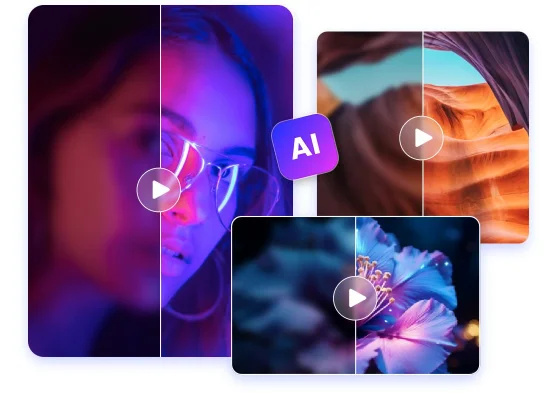
Add the video you want to improve. Blurry phone clips, shaky handheld footage, soft-focus recordings, old videos, and compressed social media files can all be used as input.
Start the AI enhancement process. The tool analyzes frames, reduces visible blur and noise, sharpens important edges, and improves clarity while preserving the original scene and motion.
Review the enhanced result, check faces and moving details, and download the clearer video for editing, sharing, archiving, or reuse.
Camera shake, quick movement, and missed focus can make important subjects difficult to see. Frame-by-frame analysis helps recover clearer edges and improve the visibility of faces, objects, and backgrounds without requiring manual timeline editing.
Reposted clips, old recordings, and heavily compressed files often lose texture and edge definition. AI enhancement can reduce blockiness, refine visible structures, and upscale the footage for a cleaner viewing experience.
Portrait videos require careful enhancement because aggressive sharpening can make faces look artificial. Balanced processing improves visible facial detail while keeping the person, expression, lighting, and movement consistent with the uploaded video.
Blur often appears together with noise, weak contrast, pixelation, or color instability. A single enhancement workflow can improve clarity, edge definition, noise levels, and overall visual balance before the video moves into your next editing or publishing step.
Create visuals faster without design skills. Turn ideas into images, thumbnails, social posts, and creative assets in seconds.
Accelerate your creative workflow. Use AI Photo Editor to generate concepts, references, and visual directions, then refine them into production-ready designs.
Produce high-converting visuals on demand. Create ads, campaign visuals, and branded images quickly.
It analyzes uploaded footage frame by frame to reduce visible blur, sharpen recoverable edges, improve textures, and increase perceived video clarity. The output remains based on the original video rather than becoming a newly generated scene.
AI Photo Editor can improve videos affected by camera shake, moderate motion blur, soft focus, compression, pixelation, noise, and low resolution. Footage with some visible source detail usually produces the strongest result.
No. AI can enhance detail that is still present and estimate limited missing information, but it cannot perfectly reconstruct content that was never captured. Extremely blurred, damaged, or heavily compressed footage may show a smaller improvement.
No. The enhancement workflow is intended to preserve the original subjects, composition, movement, and scene while improving clarity. Very strong enhancement may introduce artifacts, so the result should always be previewed before use.
Yes. After previewing the result, you can download the enhanced video for social posts, creator projects, presentations, archives, or another editing workflow. Final quality also depends on the original file and any later platform compression.
Create stunning AI videos from text or images with multiple models.
Google image generation

OpenAI image generation
ByteDance video generation
Google video generation

Kuaishou video generation

xAI image & video generation
AI Photo Editor is your go-to AI video toolkit for generating, editing, and enhancing videos.
Generate videos from text or images with multiple AI video models.
Create cinematic AI videos with Google's Veo video models.
Turn prompts and reference images into detailed AI video scenes.
Generate AI images and videos with xAI's multimodal creation tools.
Create character-focused and multi-shot videos from text or images.
Create videos from written prompts or animate an uploaded image online.
Upload blurry or low-resolution footage, enhance visible detail with AI, and download a clearer version for sharing, editing, or archiving.