Upload your photo
Choose a portrait, product image, document, or daily photo where shadows cover the face, object, background, or important details.
 AI Photo Editor
Upload a photo with unwanted shadows, describe the area if needed, and let AI Photo Editor restore natural lighting while keeping the subject, background, texture, and photo style consistent.
Upload a photo with unwanted shadows, describe the area if needed, and let AI Photo Editor restore natural lighting while keeping the subject, background, texture, and photo style consistent.
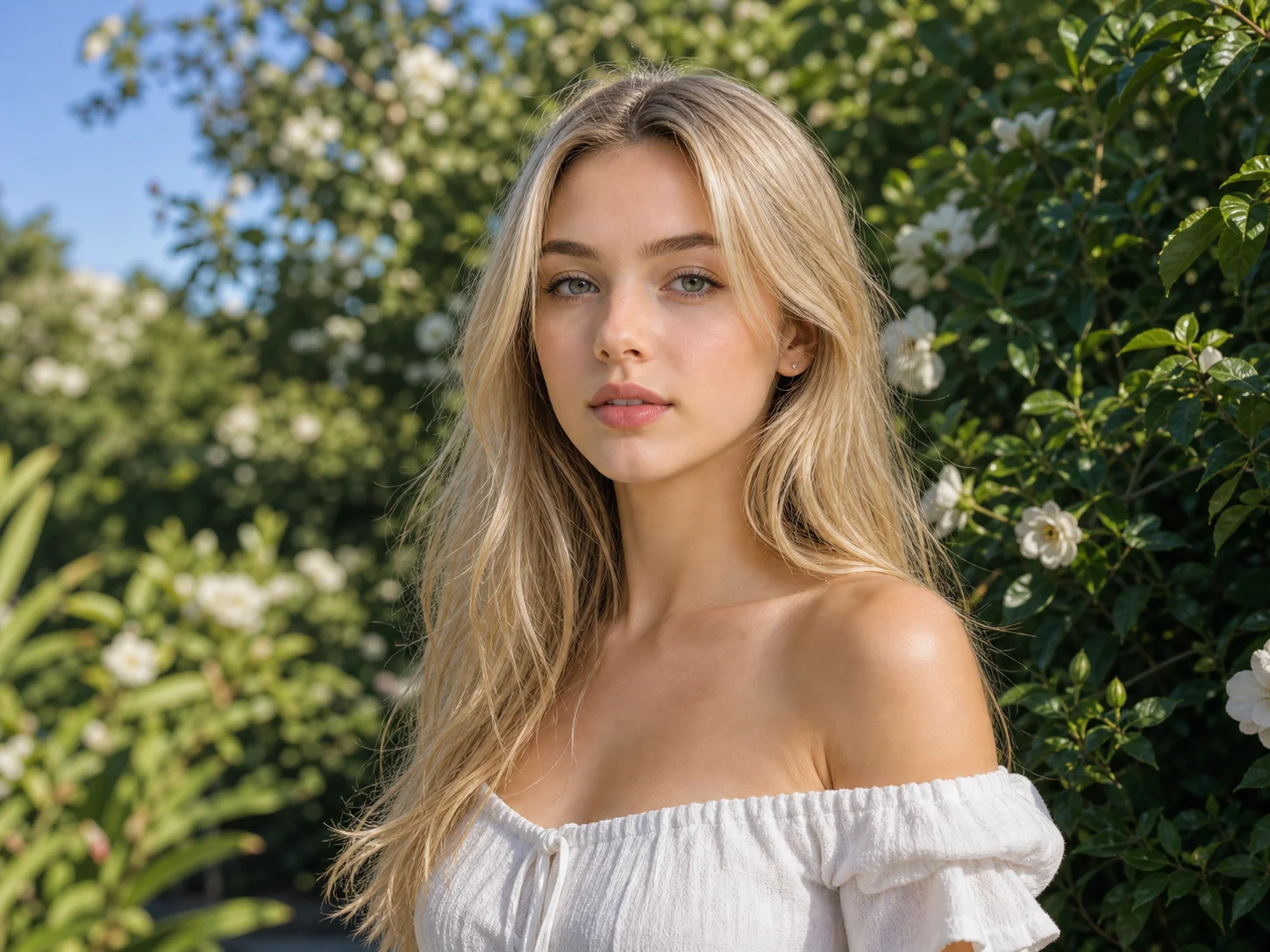
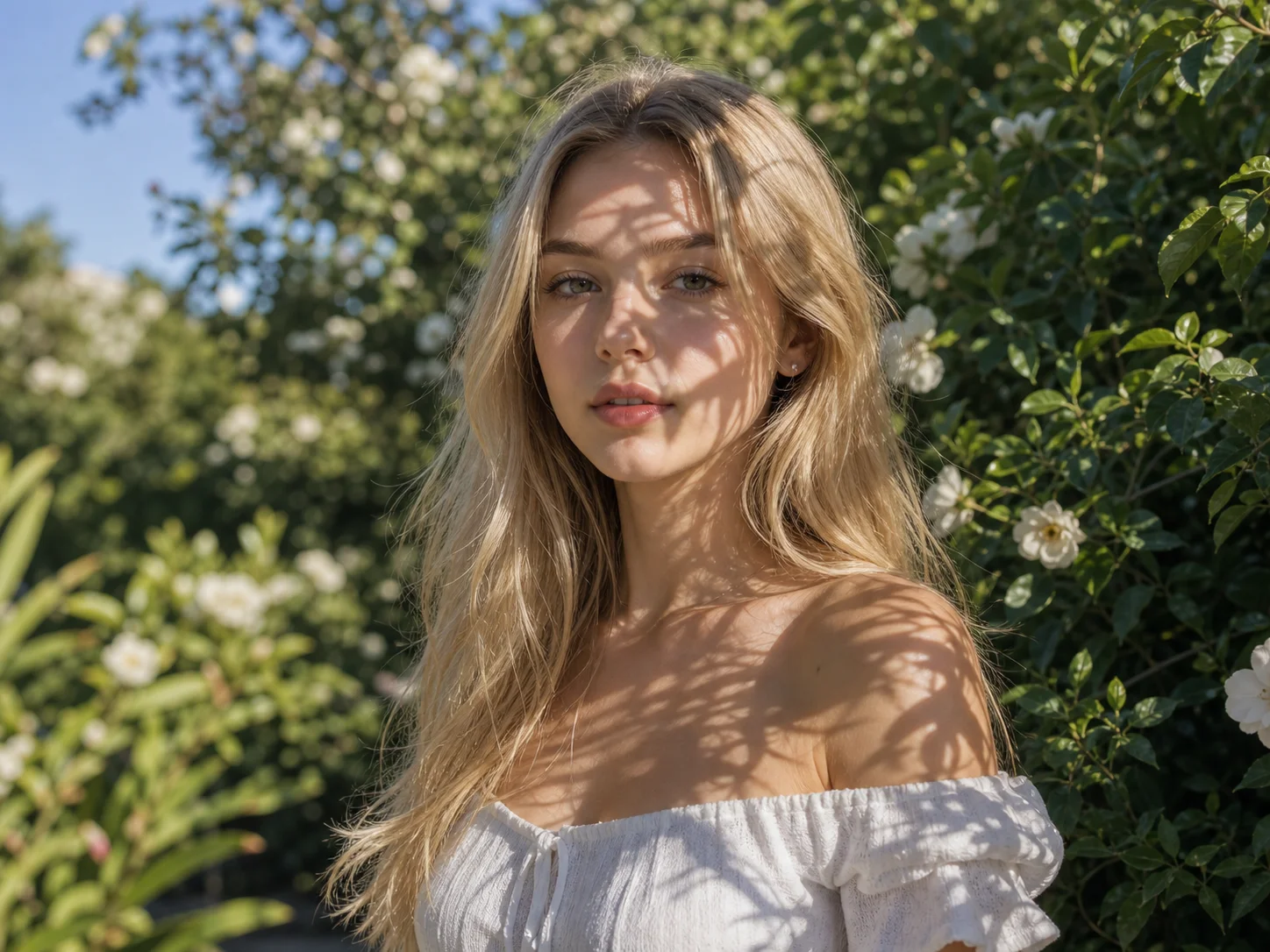
Choose a portrait, product image, document, or daily photo where shadows cover the face, object, background, or important details.
Use the prompt area to describe the shadow if needed, then generate a cleaner version with balanced light and preserved image context.
Compare the result, make another edit if the shadow still needs refinement, and download the image when the lighting looks natural.
AI Photo Editor helps reduce harsh facial shadows, object shadows, and dark patches while preserving the person, product, background, texture, and original photo style.
Use the shadow remover from photo workflow for selfies, profile photos, product listings, scanned notes, receipts, and other images where shadows make details harder to see.
The goal is not to over-brighten the whole image. AI Photo Editor focuses on the shadowed area and blends the edit with surrounding light and color for a more natural result.
Clean up selfies, travel photos, thumbnails, and social posts when harsh sunlight or uneven lighting leaves shadows across the subject.
Prepare cleaner visual references, product mockups, and presentation images by reducing distracting shadows while keeping the original composition intact.
Improve campaign visuals, product photos, and branded images when shadows make the subject look less clear or less professional.
A: It means reducing unwanted dark areas caused by harsh light, blocked light, phone shadows, face shadows, object shadows, or background shadows while keeping the main photo content recognizable.
A: Yes. You can use it on portraits where sunlight, hats, hair, objects, or uneven lighting create shadows on the face. The edit should preserve facial identity, skin texture, and natural lighting.
A: Yes. It can help clean distracting shadows from product photos, especially when casual lighting makes the background or product edge look uneven. Check the final result to make sure product details remain accurate.
A: The intended workflow is to focus on shadowed areas while keeping the subject, background, composition, and style consistent. If the result changes too much, refine the prompt and ask for only the shadow area to be adjusted.
A: Clear photos with visible subjects and moderate shadows usually work best. Extremely dark, blurry, low-resolution, or heavily blocked areas may need additional edits because hidden details are harder to restore.
AI Photo Editor is your go-to AI image toolkit for generating, editing, and enhancing photos and artwork.
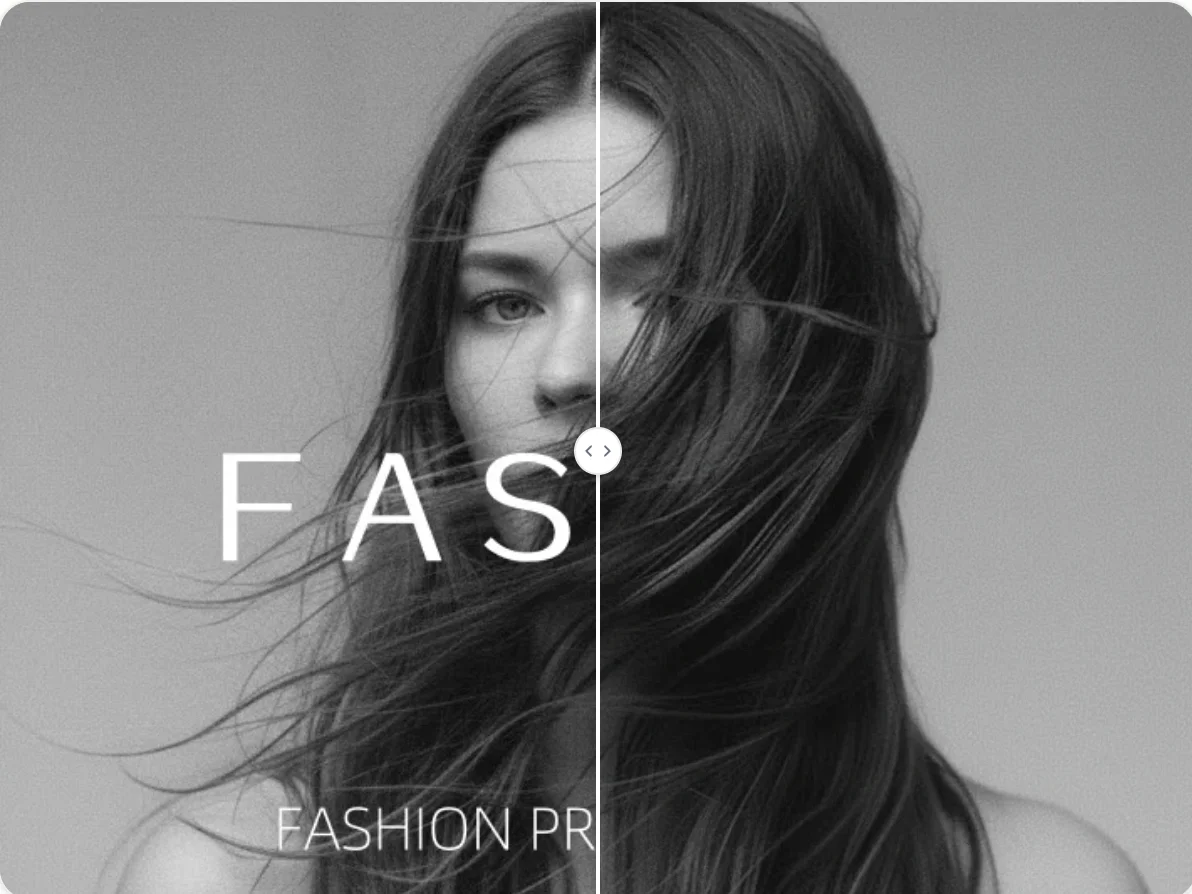
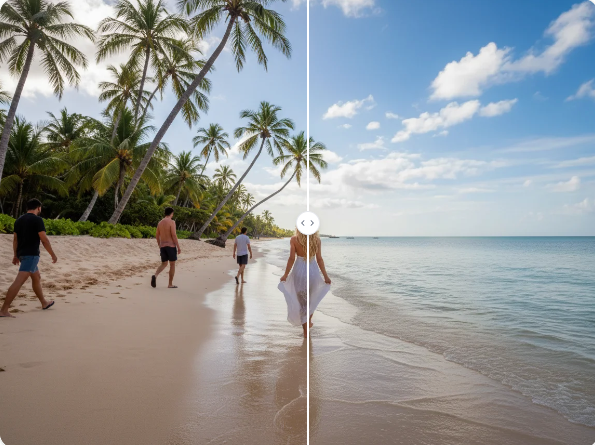
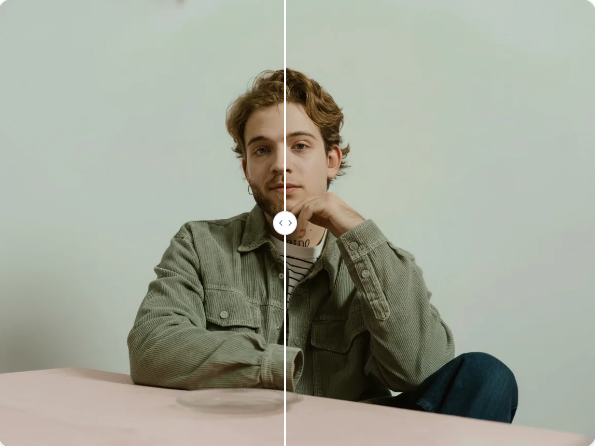
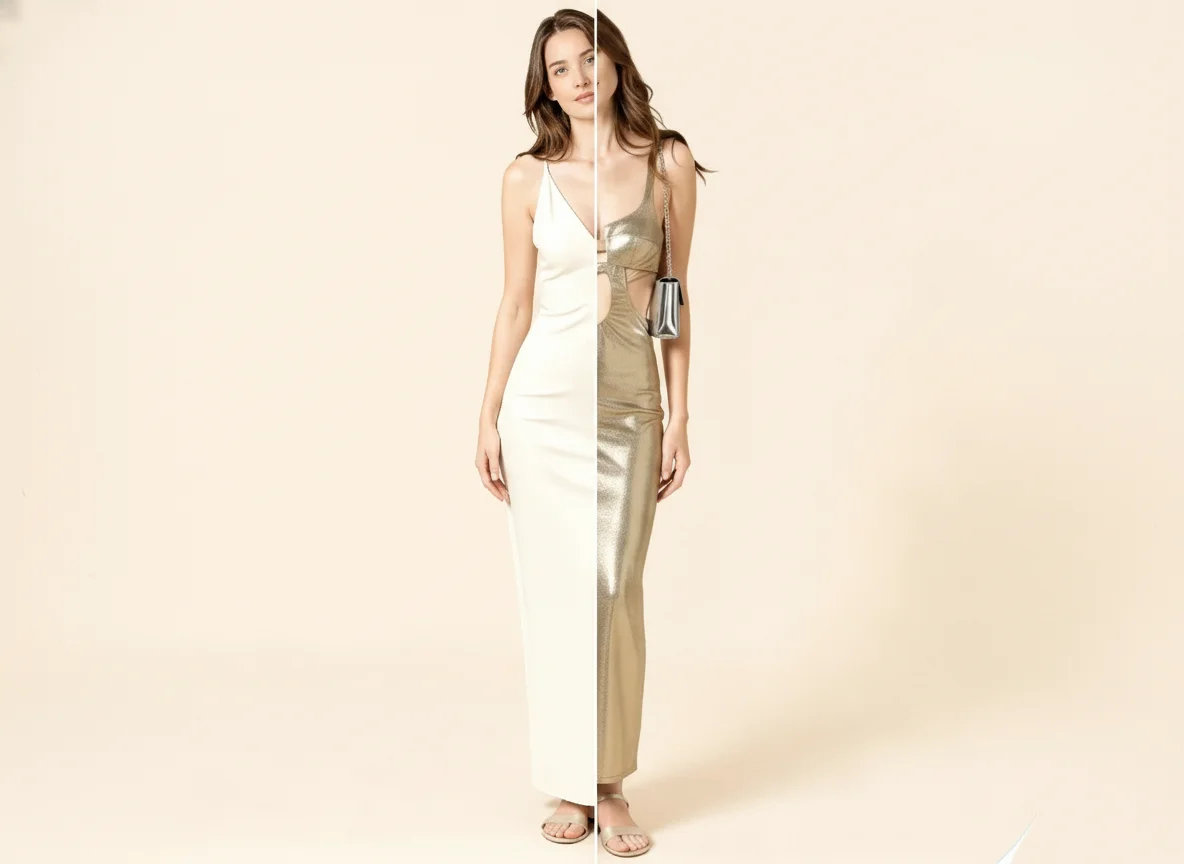
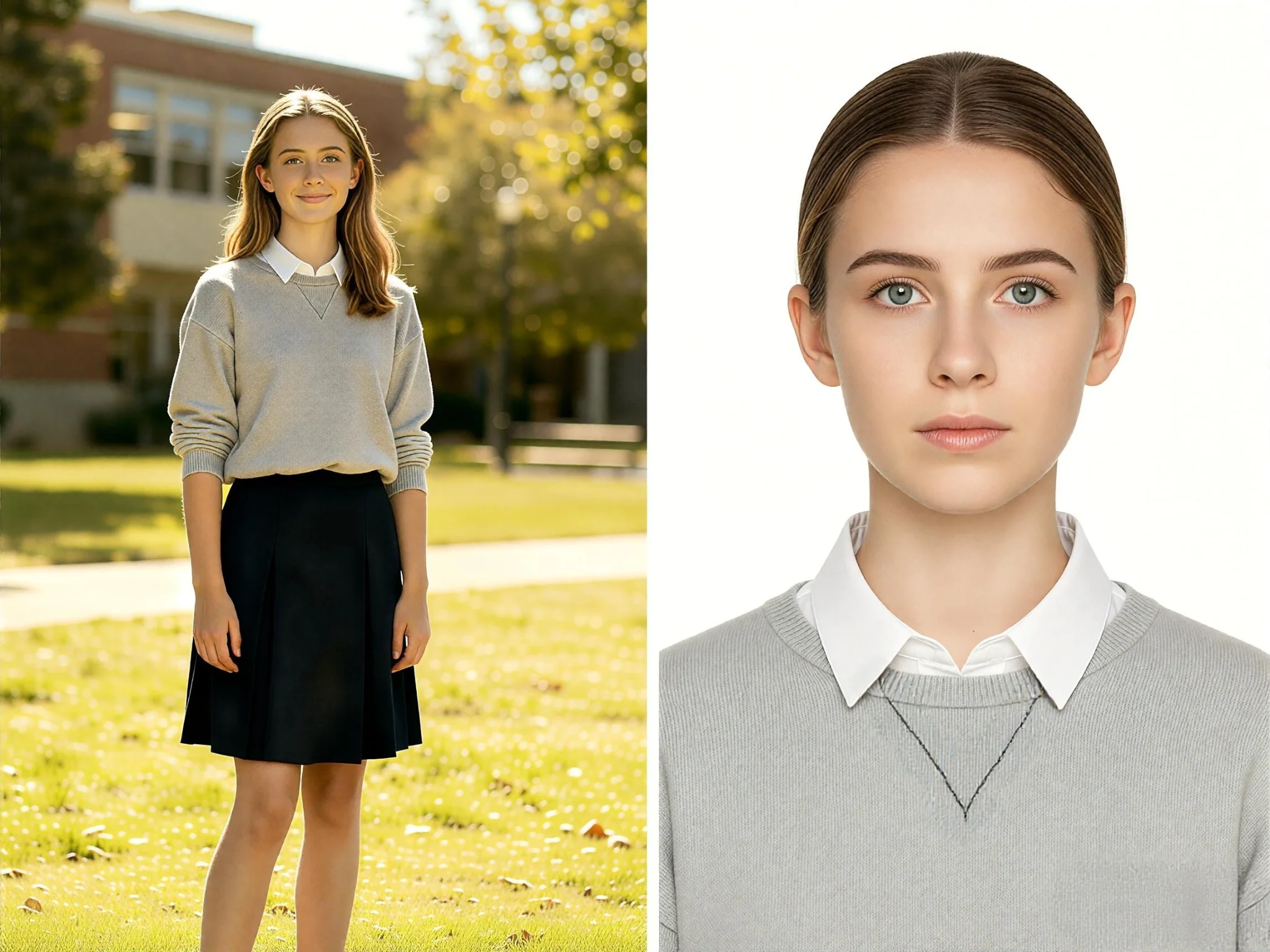
Upload a photo and use AI Photo Editor to reduce unwanted shadows, restore balanced light, and keep the original scene natural.