Upload
Choose a clear portrait where the face and eyes are easy to see. A front-facing photo with consistent lighting provides the best starting point.
 AI Photo Editor
Upload a clear portrait and describe the spider you want. Place a lifelike spider on the face, match its scale, perspective, and shadows to the photo, and create a believable frightened reaction.
Upload a clear portrait and describe the spider you want. Place a lifelike spider on the face, match its scale, perspective, and shadows to the photo, and create a believable frightened reaction.
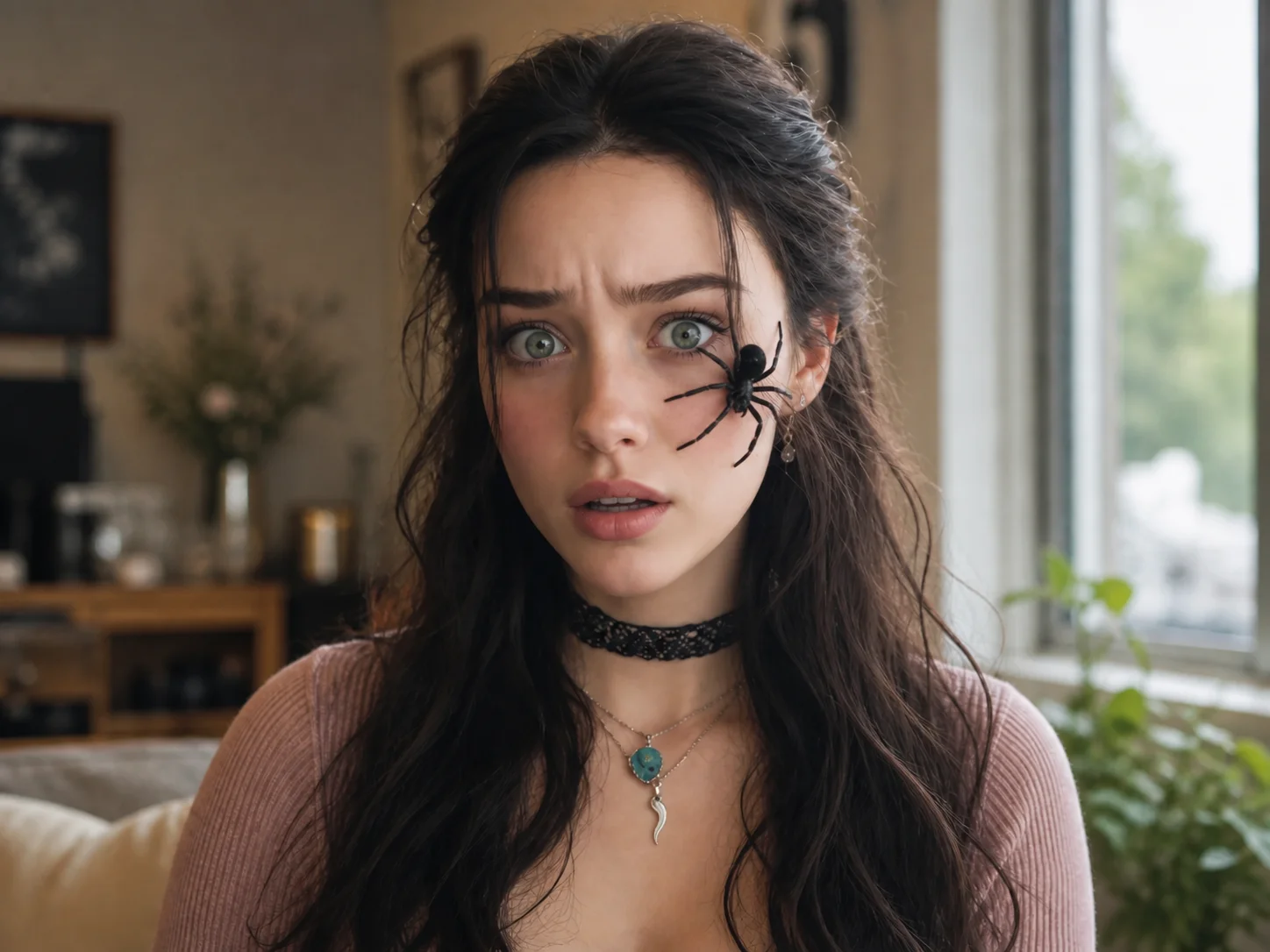
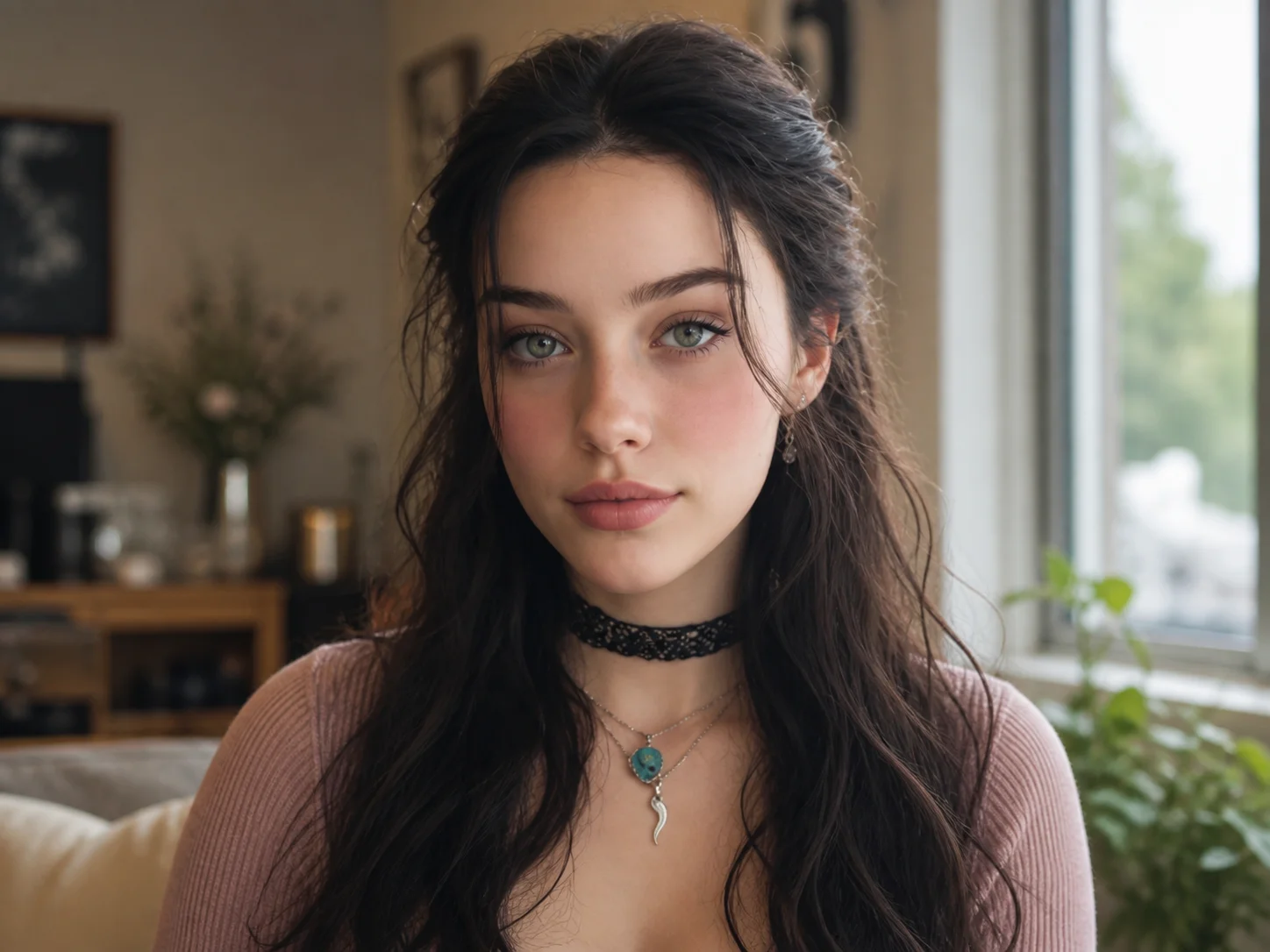
Choose a clear portrait where the face and eyes are easy to see. A front-facing photo with consistent lighting provides the best starting point.
Describe the spider's type, size, color, pose, and position. Generate the edit to place it naturally on the face and create a startled expression.
Review the spider placement, facial reaction, and overall realism, then download the finished prank photo for sharing or creative projects.
Match the spider's scale, perspective, leg contact, and shadows to the uploaded portrait so it appears to crawl across the skin instead of looking pasted onto the photo.
Describe the spider's type, color, size, pose, and exact facial position to create a customized prank that follows your visual direction.
Add widened eyes, tense raised eyebrows, and a slightly open mouth while preserving the person's recognizable identity, hairstyle, clothing, and original scene.
Create attention-grabbing prank portraits, reaction images, Halloween posts, and short-form social visuals without manually compositing every detail.
Explore realistic creature placement, facial reactions, and horror-inspired compositions as references for posters, campaigns, and entertainment concepts.
Produce memorable seasonal visuals and playful campaign assets for Halloween promotions, events, social posts, and audience engagement.
A spider filter uses AI to add a realistic spider to an uploaded portrait, align it with the face, and create a convincing prank image while retaining the recognizable person and scene.
AI Photo Editor matches the spider's scale, perspective, contact points, lighting, and shadows to the uploaded photo so the added element fits the skin and surrounding scene naturally.
Yes. Describe the intended cheek, forehead, or eye area together with the spider's size and pose to guide its placement more precisely.
Ask for a visible startled reaction with widened eyes, raised tense eyebrows, a slightly open mouth, and facial tension while keeping the person's identity recognizable.
Clear portraits with a visible face, sharp eyes, steady lighting, and enough cheek or forehead space usually produce more convincing spider placement and facial reactions.
AI Photo Editor is your go-to AI image toolkit for generating, editing, and enhancing photos and artwork.
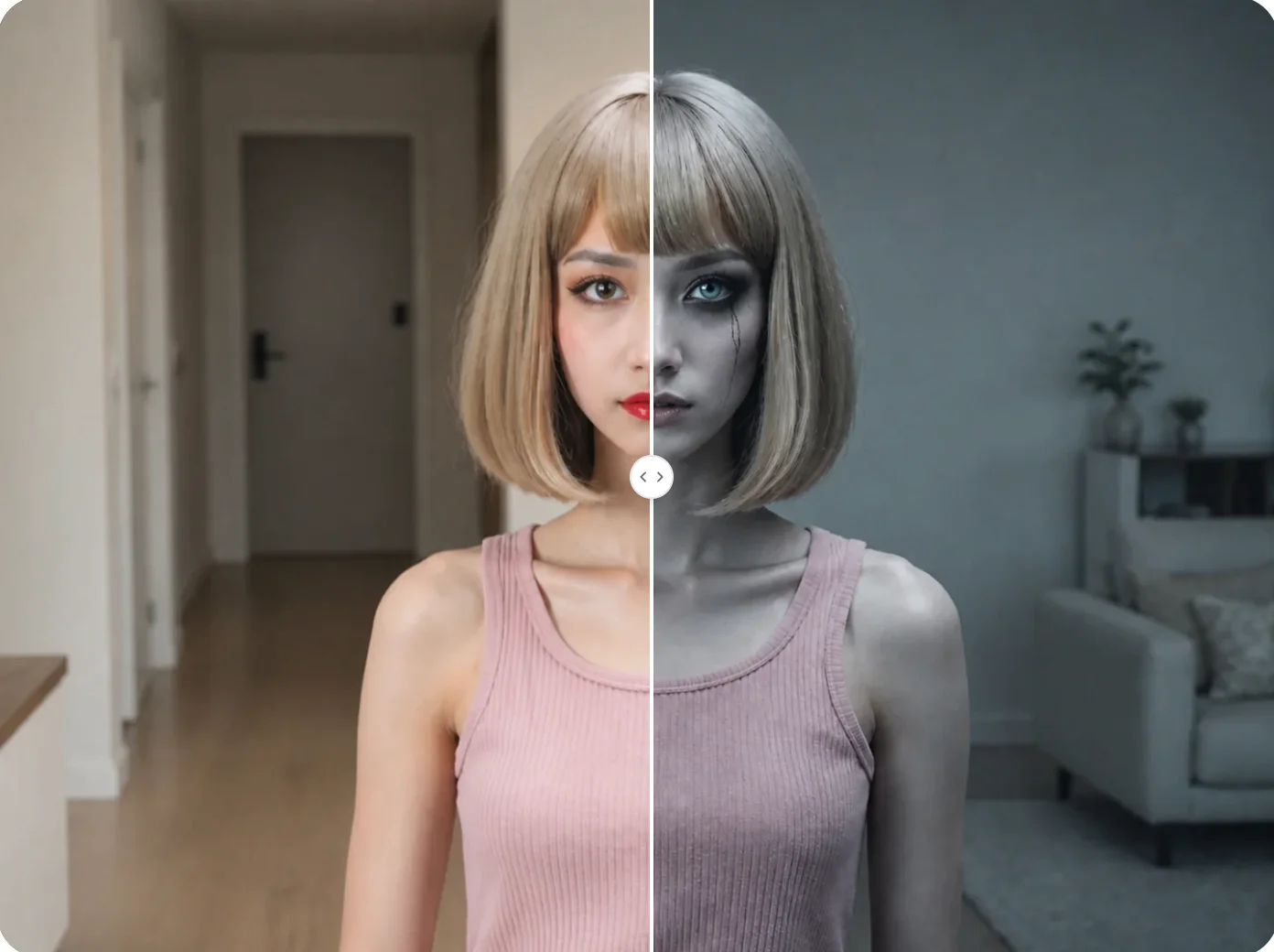
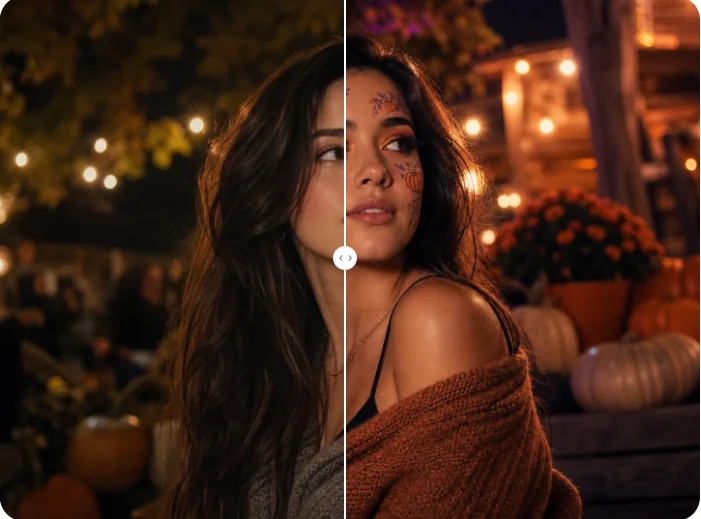
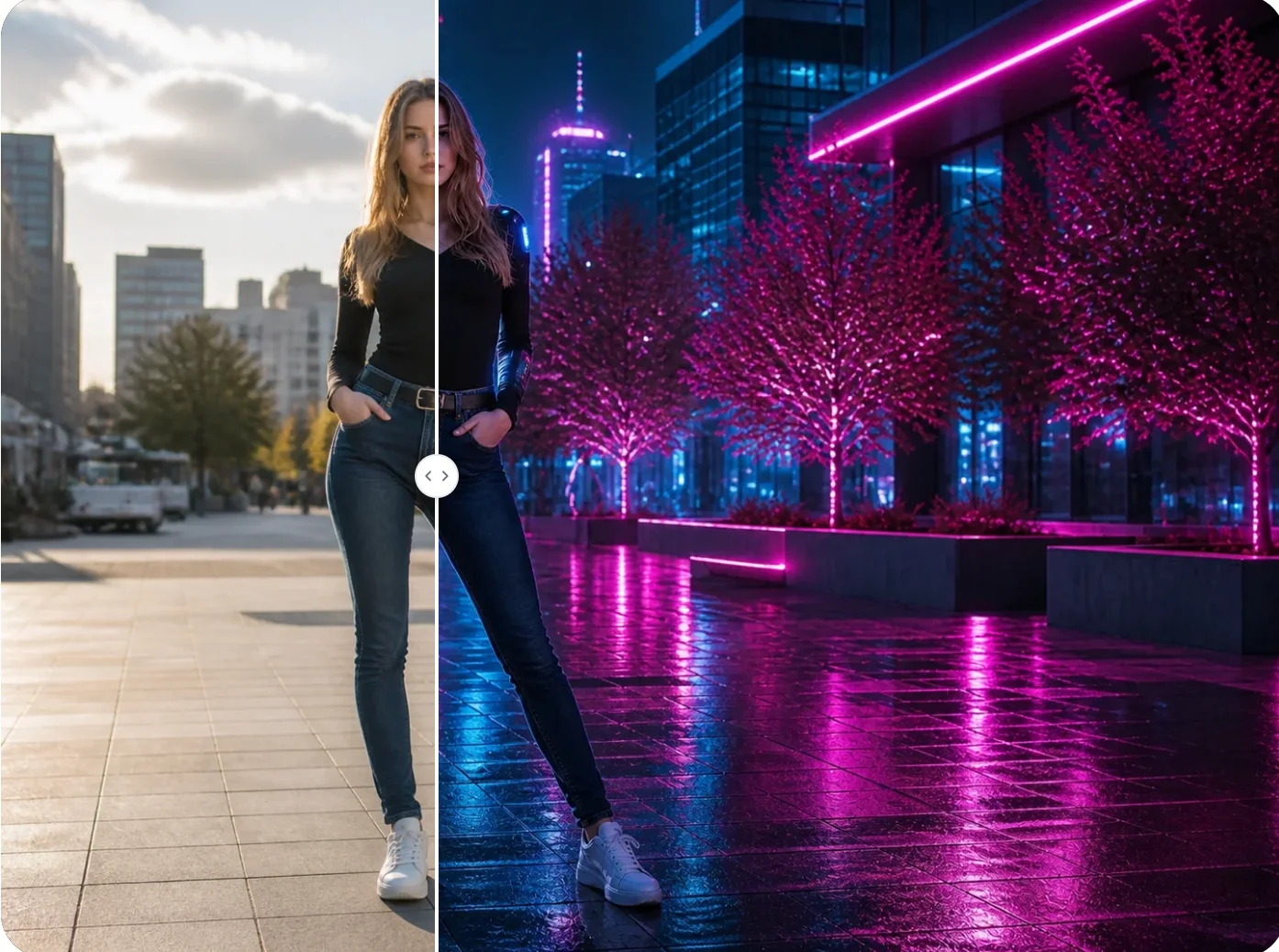
Upload a portrait, add a lifelike spider to the face, and create a frightened reaction with lighting, perspective, and shadows that fit the original photo.