Upload
Upload a clear, front-facing portrait with both eyebrows visible and minimal obstruction from hair or shadows.
 AI Photo Editor
Upload a clear portrait and describe the eyebrow shape, thickness, arch, or color you want. The filter edits the brows while matching the original face, skin tone, lighting, and proportions for a believable preview.
Upload a clear portrait and describe the eyebrow shape, thickness, arch, or color you want. The filter edits the brows while matching the original face, skin tone, lighting, and proportions for a believable preview.
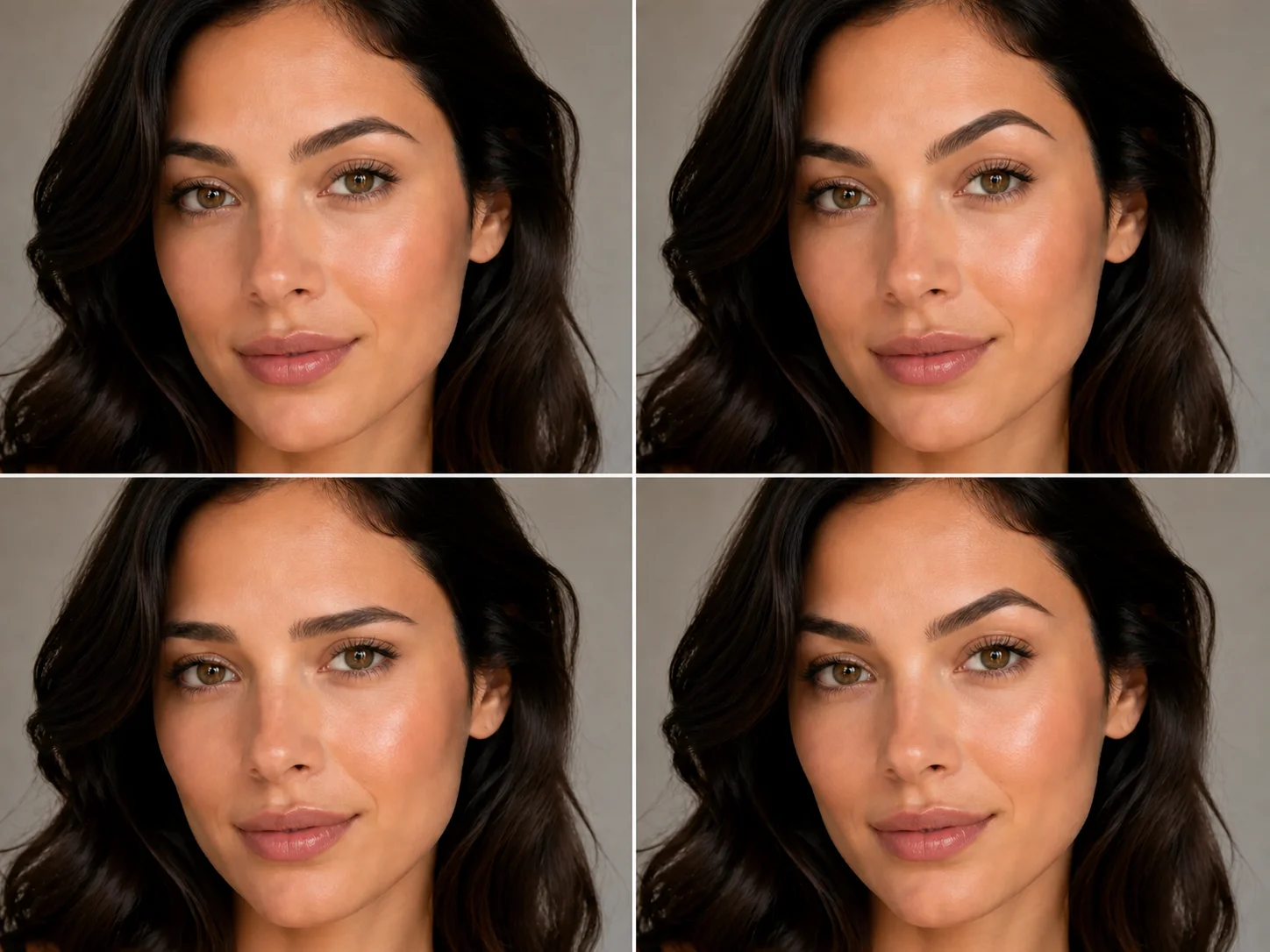
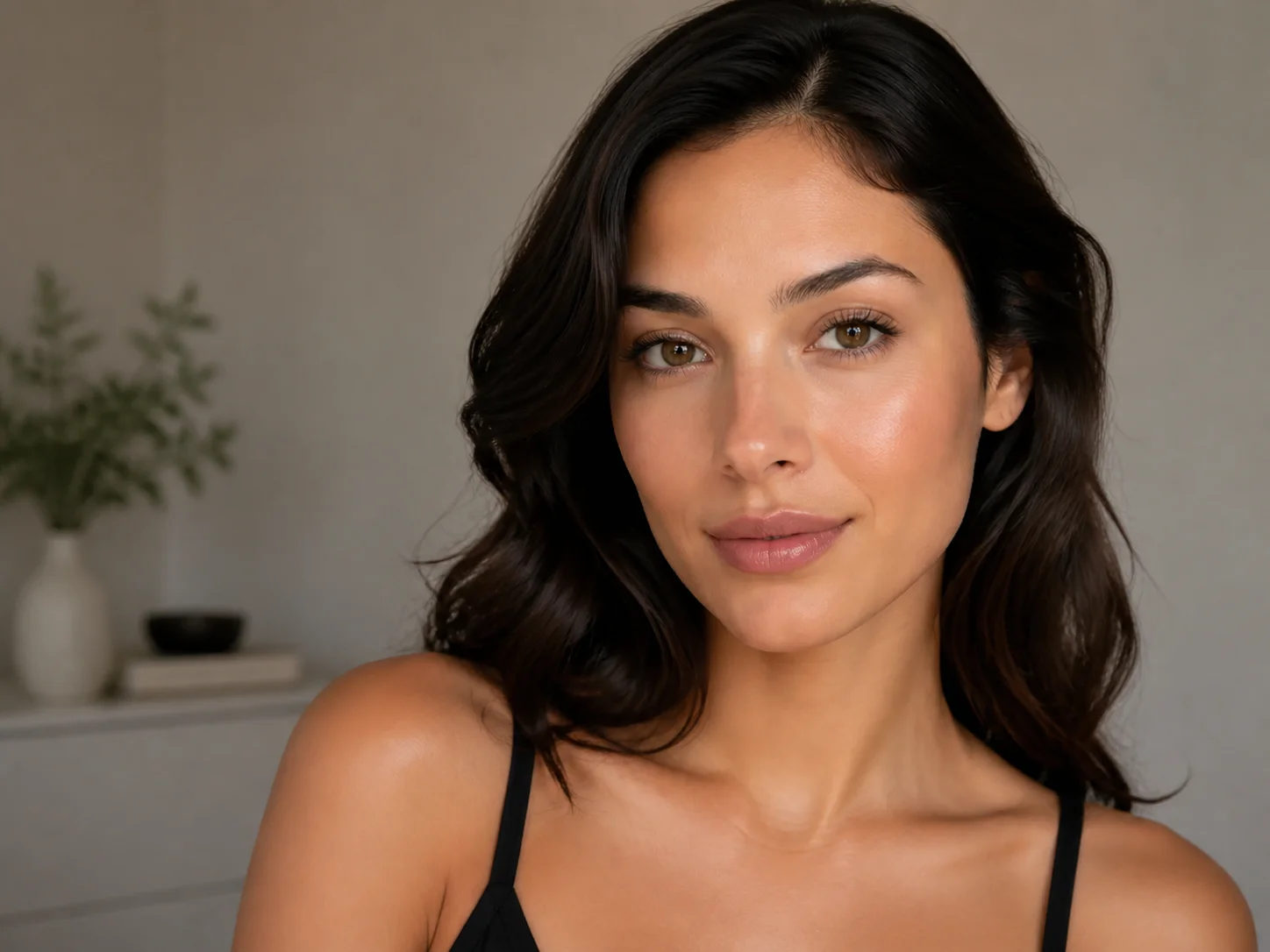
Upload a clear, front-facing portrait with both eyebrows visible and minimal obstruction from hair or shadows.
Describe the eyebrow shape, thickness, arch, and color you want, then generate a natural brow transformation.
Review the new brows and download the result when the style blends naturally with your portrait.
Preview arched, straight, soft, thin, full, or defined brows without changing your real eyebrows. Compare different proportions and find a style that complements your visible facial structure.
Try black, brown, blonde, or custom eyebrow colors. The edit adapts the shade and texture to the portrait's skin tone, hair, and lighting for a more seamless result.
Fill visible gaps, balance uneven arches, and improve brow definition while preserving the subject's identity and the rest of the photo. Get a polished preview without detailed manual retouching.
Create polished portrait variations for social posts, profile images, and beauty content. Preview different brows while keeping the person recognizable and the photo visually consistent.
Generate eyebrow styling references for portrait concepts, makeup direction, and character design. Compare shape, color, and thickness before refining a final visual.
Produce campaign-ready portrait variations for beauty, styling, and personal care content. Test brow looks quickly while keeping the original image direction coherent.
An eyebrow filter uses AI to adjust visible eyebrow shape, thickness, arch, color, and texture in a portrait. It creates a virtual preview without requiring a real makeup or grooming change.
Results are designed to blend with the portrait's facial proportions, skin tone, lighting, and existing brow area. A clear, well-lit, front-facing photo usually produces a more believable result.
Yes. Describe the brow style you want, including an arched or straight shape, thinner or fuller density, and a preferred color such as black, brown, or blonde.
Use a high-quality portrait with the face looking forward, both eyebrows visible, and even lighting. Avoid photos where hair, hats, strong shadows, or heavy blur cover the brow area.
The intended edit focuses on the eyebrows while preserving the person's identity, facial features, skin tone, hairstyle, expression, and surrounding image content as closely as possible.
AI Photo Editor is your go-to AI image toolkit for generating, editing, and enhancing photos and artwork.
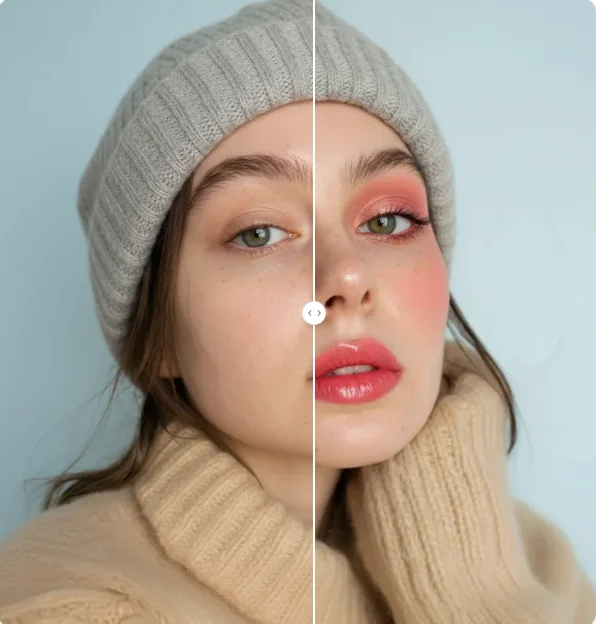
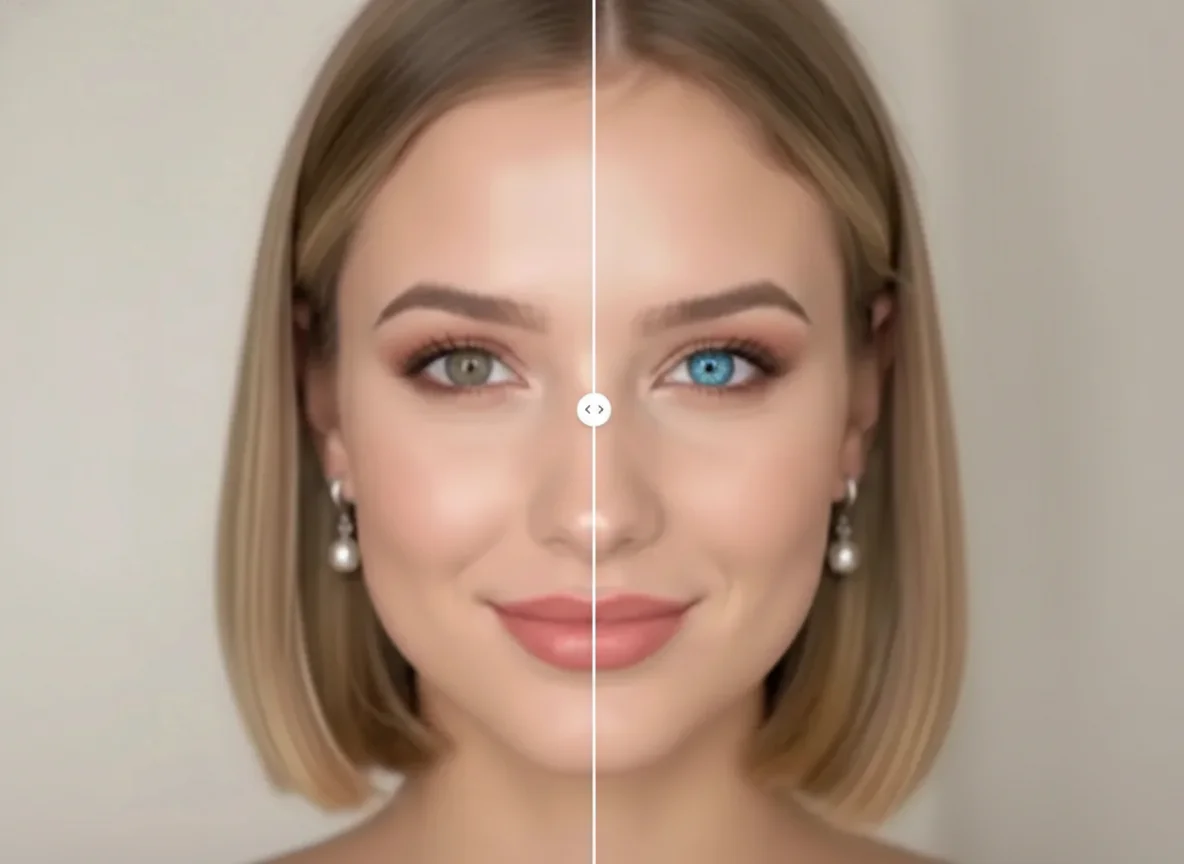
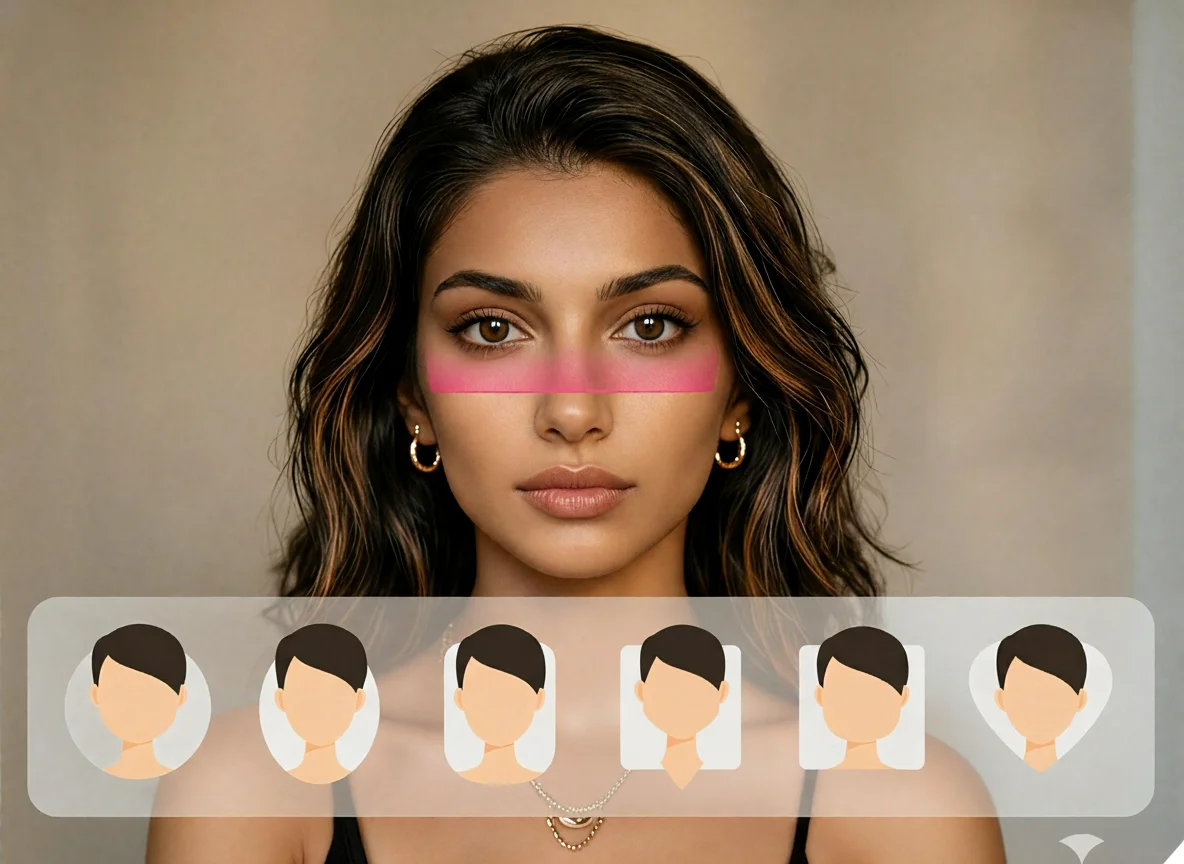
Upload a portrait, describe your ideal brow shape and color, and preview a natural eyebrow style that stays consistent with your face.