Upload
Choose a clear photo, illustration, product image, or social graphic. Keep the important subject away from the outer edge when possible so the new frame has enough visual space.
 AI Photo Editor
Upload an image and describe the border you want, including its color, width, material, pattern, or mood. Generate a balanced frame around the picture while preserving the original subject, composition, and important details.
Upload an image and describe the border you want, including its color, width, material, pattern, or mood. Generate a balanced frame around the picture while preserving the original subject, composition, and important details.
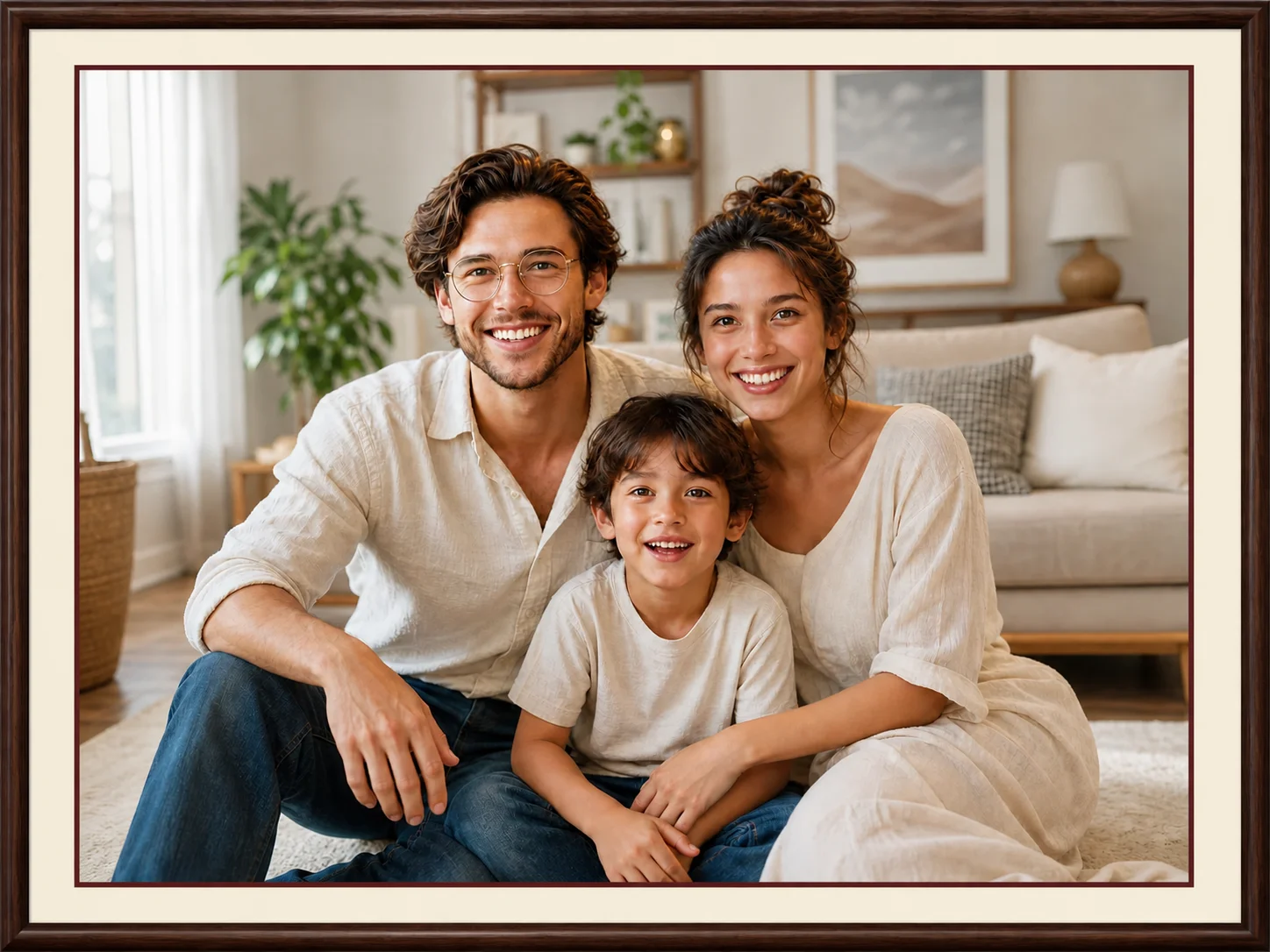
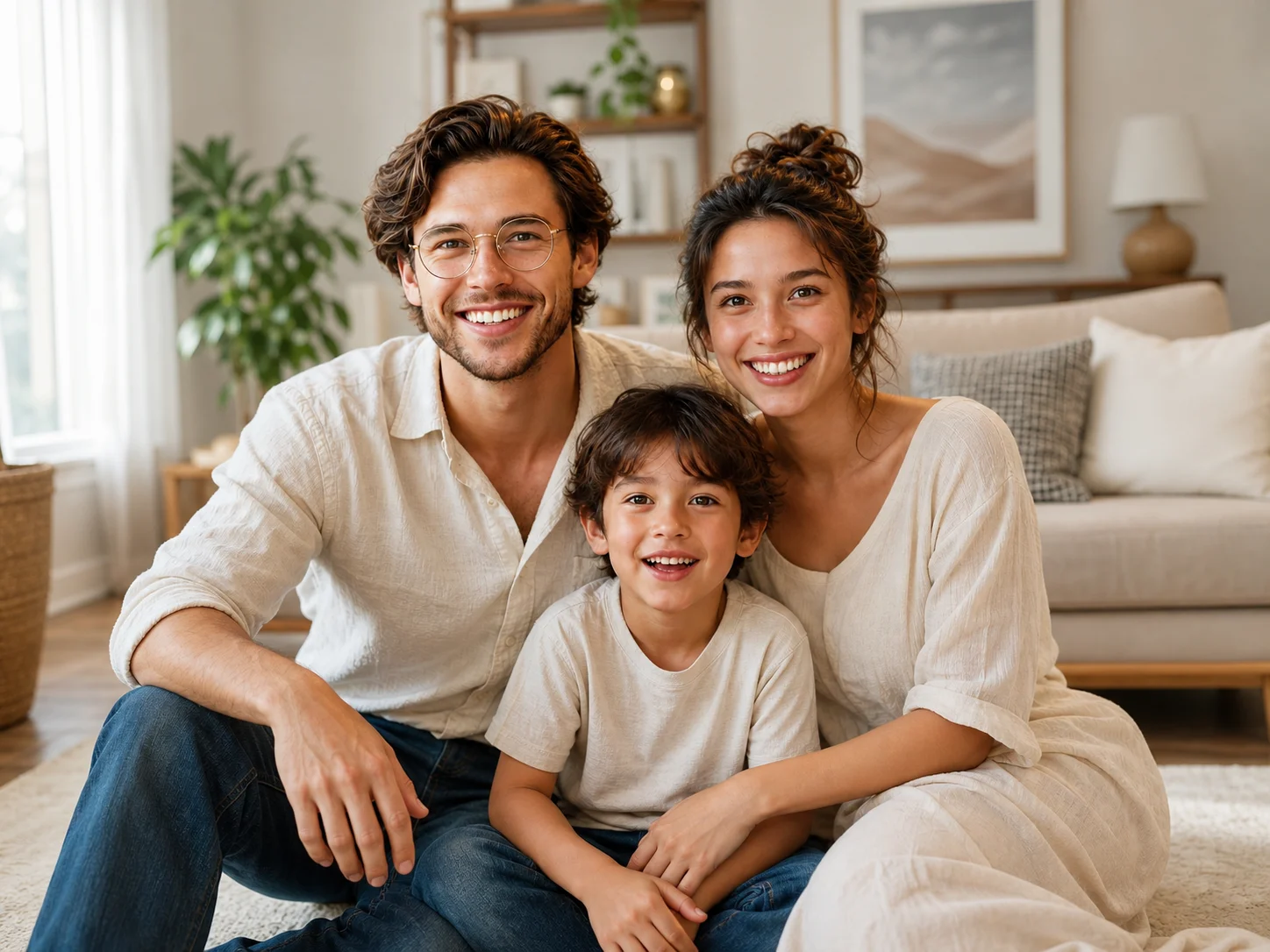
Choose a clear photo, illustration, product image, or social graphic. Keep the important subject away from the outer edge when possible so the new frame has enough visual space.
Describe the border color, thickness, texture, corner style, and overall look. Generate the edit and let the frame adapt to the image's palette and composition.
Review the border balance, edge spacing, and preserved image details. Download the finished image when the frame matches your intended use.
Go beyond a basic solid outline by describing minimal white spacing, bold color bands, film-inspired edges, elegant gallery mats, decorative patterns, or other frame concepts that fit the image.
Keep the subject, internal composition, colors, and important visual details recognizable while the border is created around the image rather than replacing its content.
Create subtle separation for thumbnails, consistent framing for product images, polished borders for portraits, or distinctive edges for posts, invitations, and printable designs.
Add distinctive frames to profile images, thumbnails, illustrations, and social posts without manually rebuilding border effects for every design.
Explore border materials, color relationships, edge treatments, and framing directions as quick visual references for campaigns, layouts, and presentation assets.
Give product photos, campaign graphics, and branded posts a more consistent visual edge while adapting the frame to different channels and audiences.
It creates a new frame around an uploaded picture based on your prompt. You can describe the desired color, width, texture, pattern, corner treatment, and visual mood while keeping the image itself recognizable.
The intended edit adds the frame around the picture and preserves the subject and internal composition. Review the generated result before downloading, especially when important details sit close to the edge.
You can specify colors, approximate thickness, straight or rounded corners, materials such as wood or paper, decorative motifs, inner mats, film edges, and the overall level of contrast.
Portraits, product images, illustrations, invitations, thumbnails, and social graphics can all work well. Clear source images with sufficient edge space make it easier to create a balanced frame.
Yes. Request a clean white border for simple spacing or describe a decorative frame with a specific material, palette, pattern, or theme. More precise prompts generally produce more directed results.
AI Photo Editor is your go-to AI image toolkit for generating, editing, and enhancing photos and artwork.
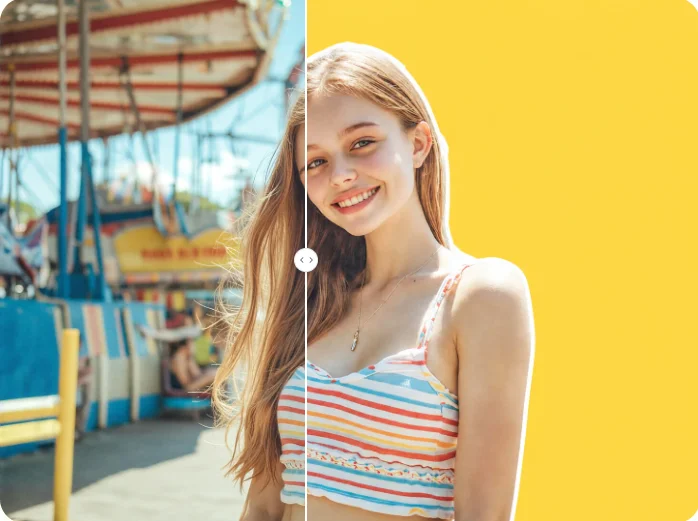
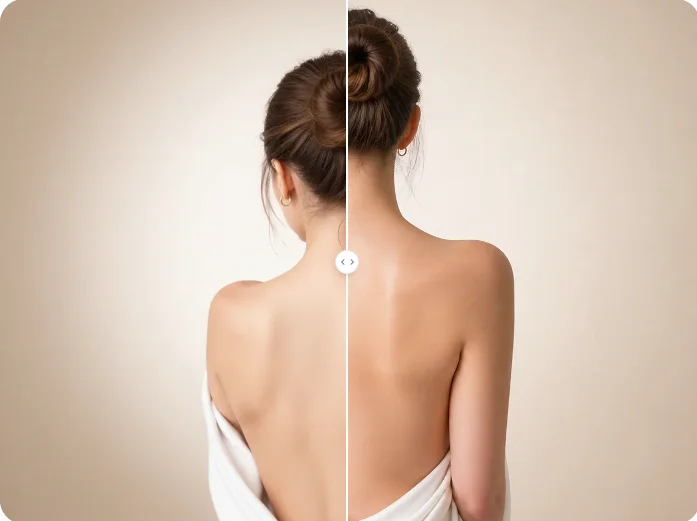

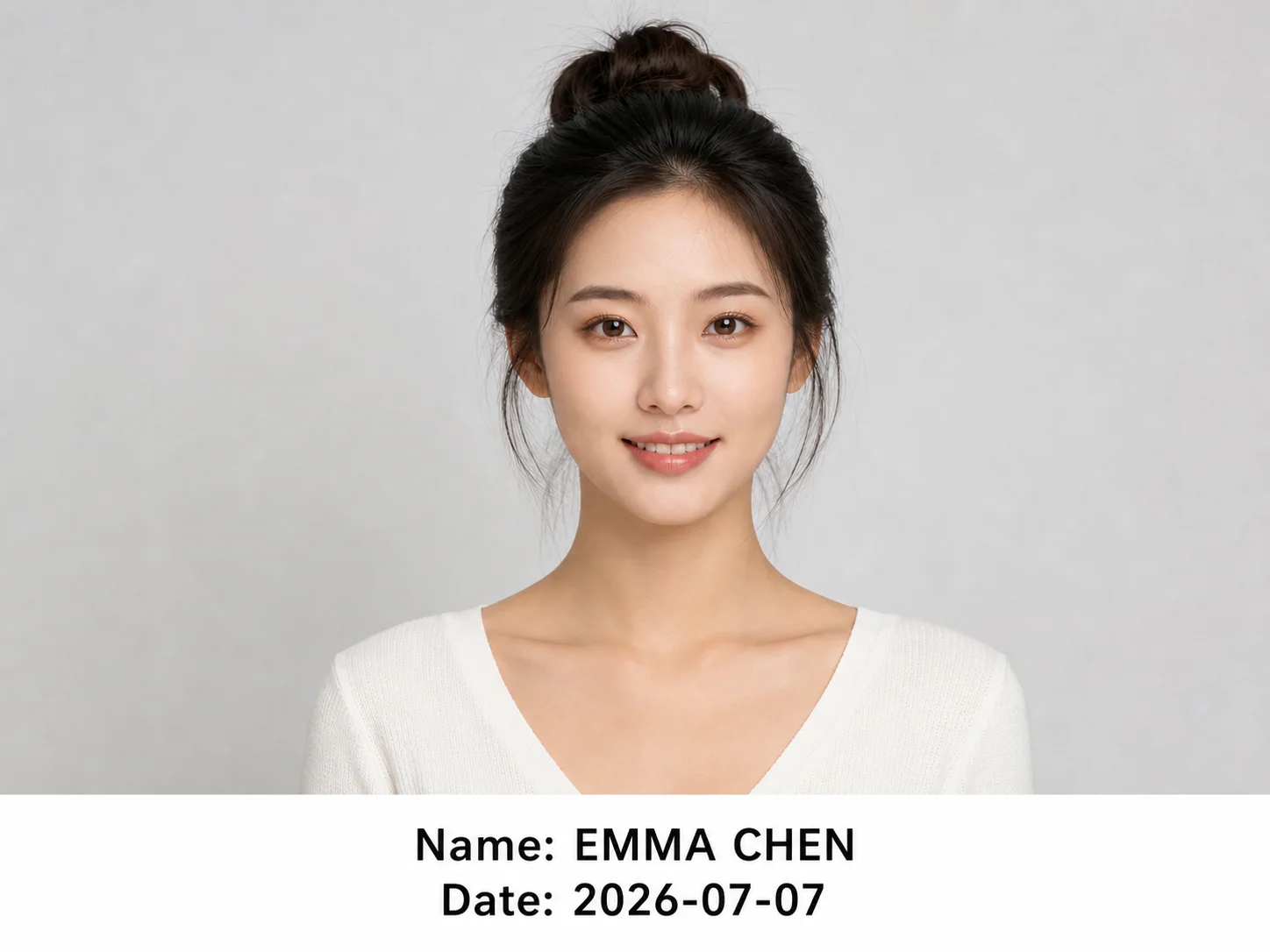
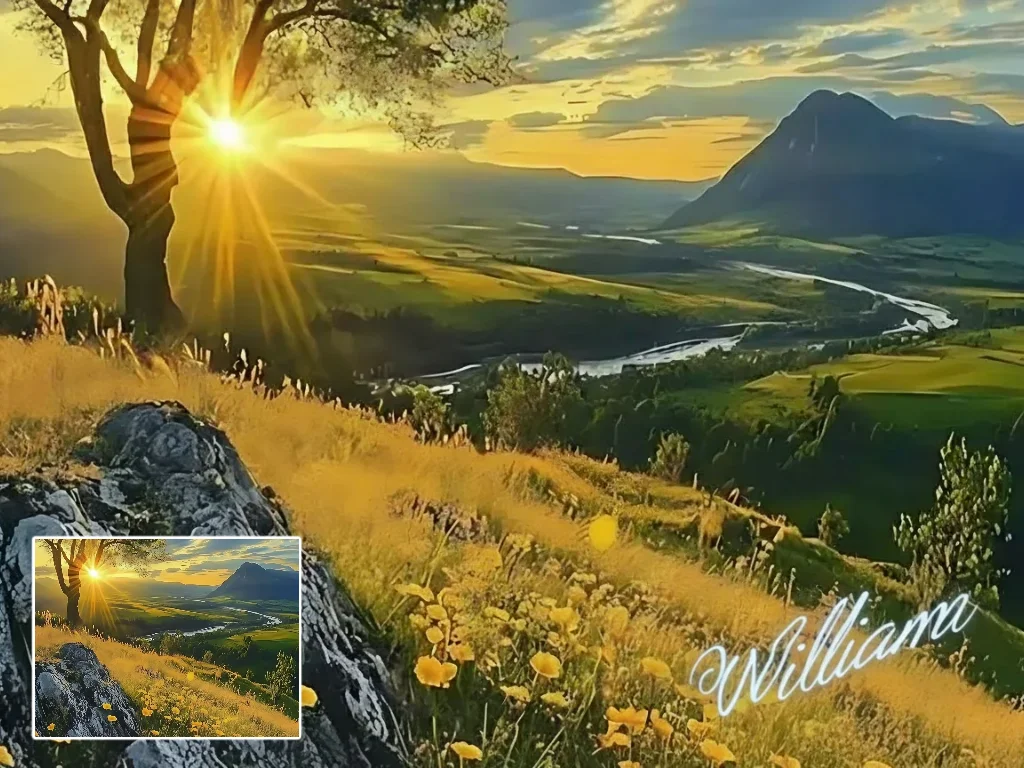
Upload an image, describe the frame you want, and create a polished border that complements the picture without replacing its content.