Upload a Filtered Photo
Choose a portrait, selfie, product image, social media photo, or edited picture with visible filters, color overlays, beauty effects, or heavy stylized tones.
 AI Photo Editor
Upload a filtered photo and tell AI Photo Editor what you want to restore, such as natural skin tones, original colors, cleaner lighting, or fewer beauty effects. The tool generates a revised image that reduces visible filter styling while keeping the subject, texture, and photo composition recognizable.
Upload a filtered photo and tell AI Photo Editor what you want to restore, such as natural skin tones, original colors, cleaner lighting, or fewer beauty effects. The tool generates a revised image that reduces visible filter styling while keeping the subject, texture, and photo composition recognizable.
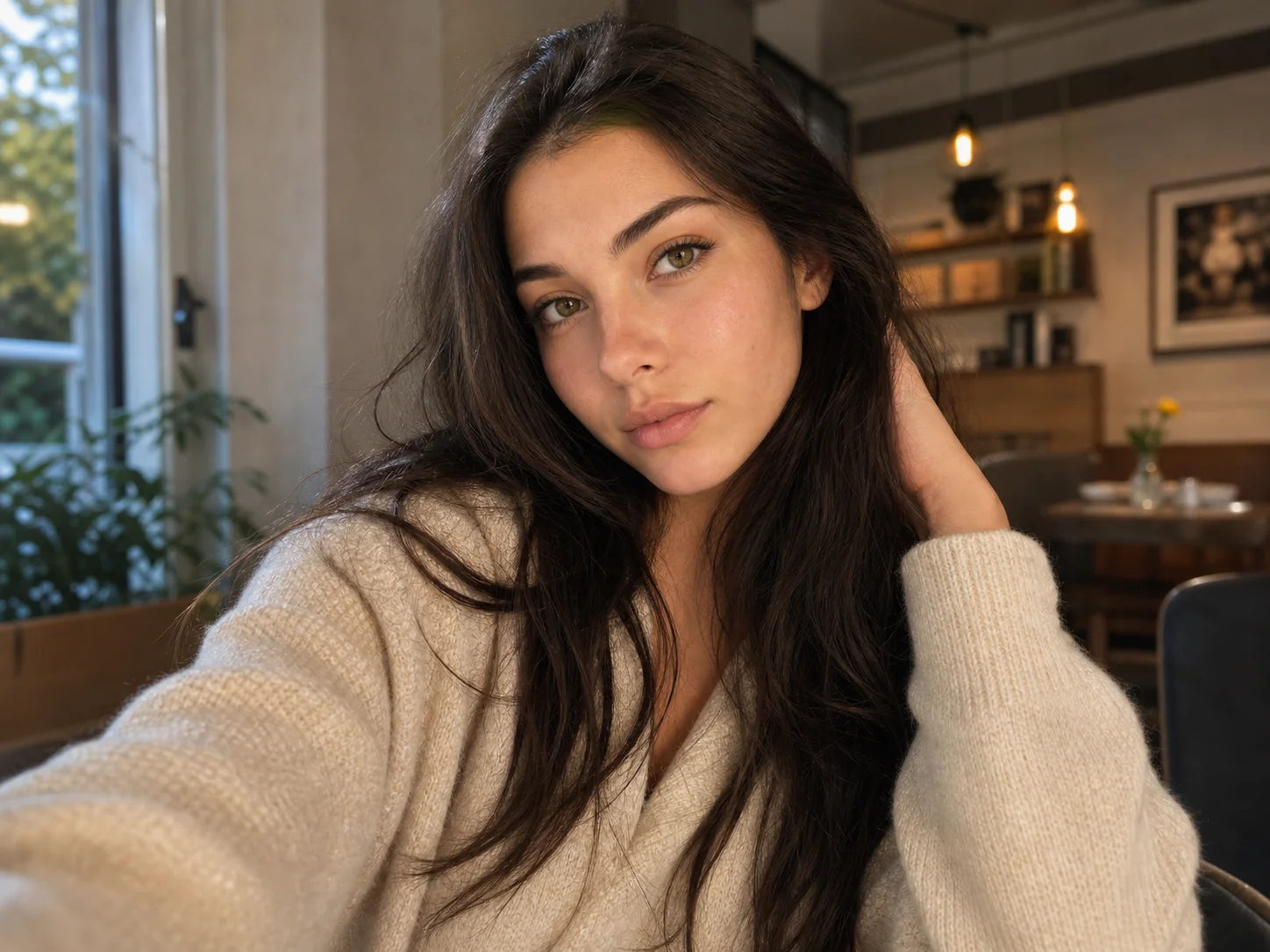
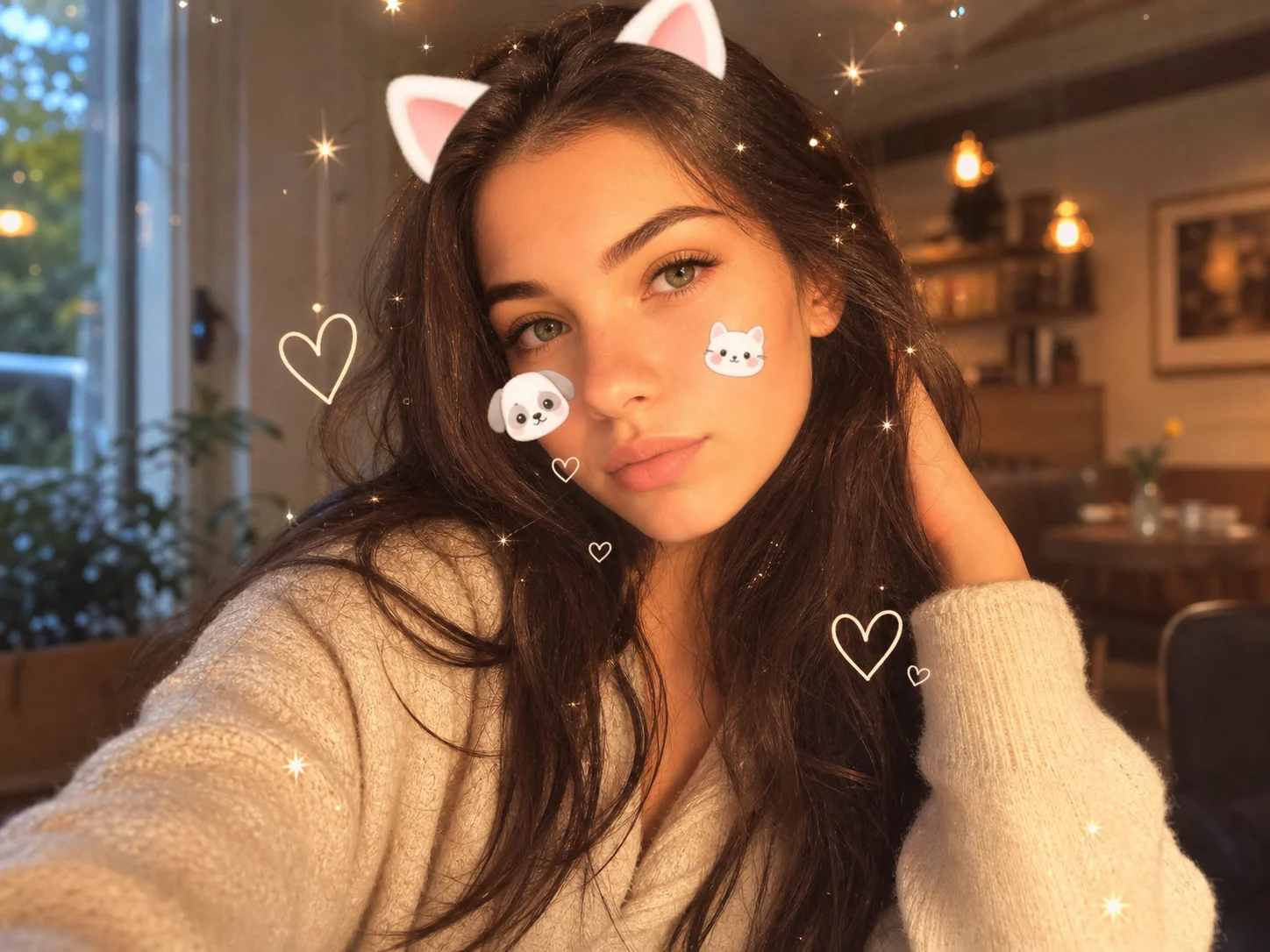
Choose a portrait, selfie, product image, social media photo, or edited picture with visible filters, color overlays, beauty effects, or heavy stylized tones.
Describe what should be reduced or restored, such as removing warm color cast, softening beauty filters, recovering natural texture, or making the photo look closer to the original.
Preview the result, check whether the photo still looks natural, then download the edited image for profiles, posts, product visuals, or further creative work.
AI Photo Editor Filter Remover helps analyze the edited look and generate a cleaner version without requiring manual exposure, color temperature, or saturation adjustments. It is useful when a filter makes a photo look too warm, too cool, overly soft, or visually unnatural.
Instead of only lowering saturation, AI Photo Editor can guide the image toward clearer skin texture, more balanced lighting, and more realistic color. This helps portraits, product shots, and social media images look less processed.
Use Filter Remover for photos affected by beauty filters, color overlays, vintage tones, AR-style effects, or strong app presets. You can describe the specific effect you want reduced so the output matches your editing goal.
Clean up filtered selfies, thumbnails, profile visuals, and social posts before publishing. Restore a more natural look while keeping the image ready for creative use.
Use AI Photo Editor to reduce unwanted color styling, recover cleaner source visuals, and prepare images for retouching, layout work, or brand-consistent visual systems.
Improve campaign images, product visuals, creator content, and ad assets that look over-filtered. Keep photos clearer, more authentic, and easier to align with brand guidelines.
A filter remover helps reduce visible photo filter effects such as color overlays, beauty smoothing, vintage tones, or strong app presets. With AI Photo Editor, you can upload a filtered image and generate a cleaner, more natural-looking version.
It can help with many common filter effects, but results depend on the original image, filter strength, and how much detail remains in the photo. A clear image with visible subject detail usually gives better results.
No. If the original unfiltered photo is not available, AI cannot guarantee an exact reconstruction. It can generate a more natural version by reducing visible filter effects and rebuilding likely color, lighting, and texture.
You can try to reduce beauty filters, strong color casts, vintage effects, soft blur styling, heavy contrast presets, social media filters, and other edited looks that make the image feel less natural.
Be specific about what you want restored. For example, ask AI Photo Editor to reduce the warm filter, recover natural skin texture, remove color overlay, keep the same face and pose, and make the image look closer to an original photo.
AI Photo Editor is your go-to AI image toolkit for generating, editing, and enhancing photos and artwork.
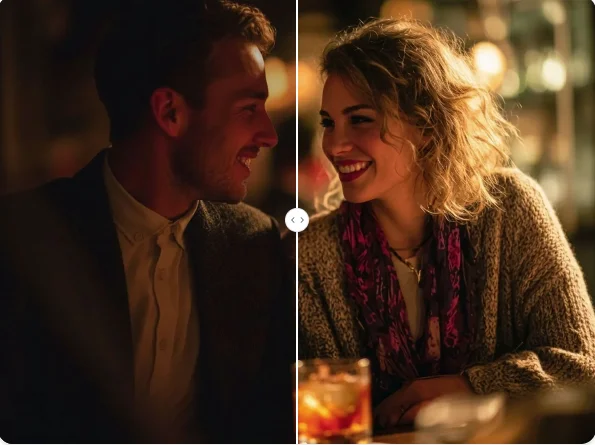
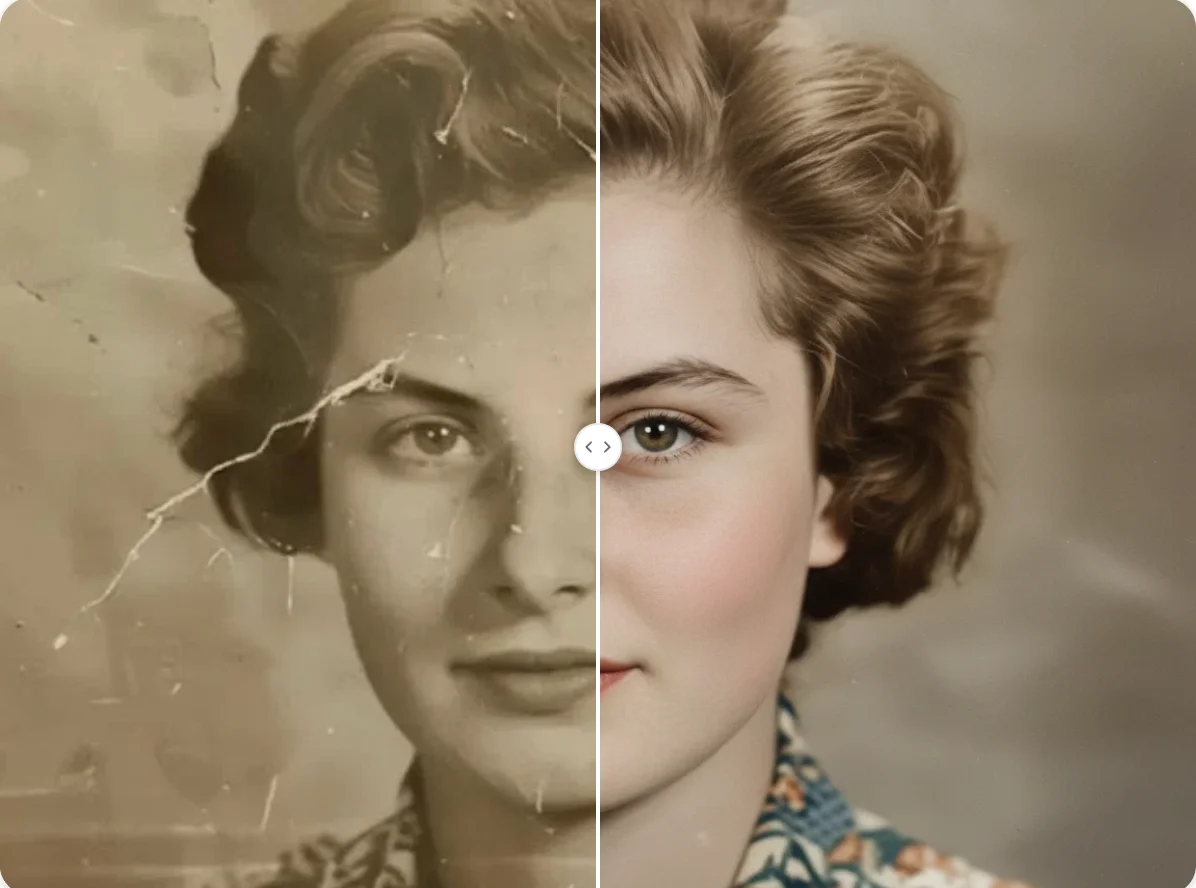
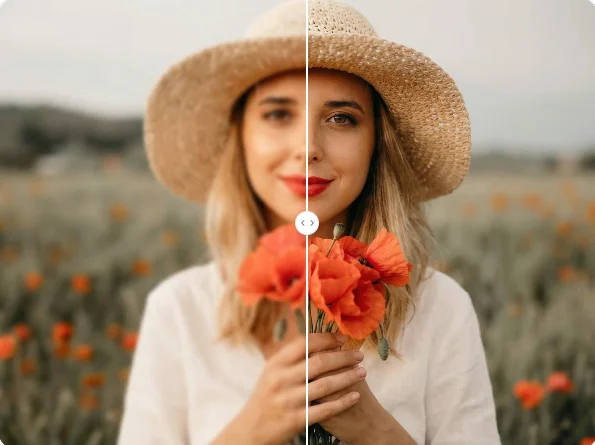
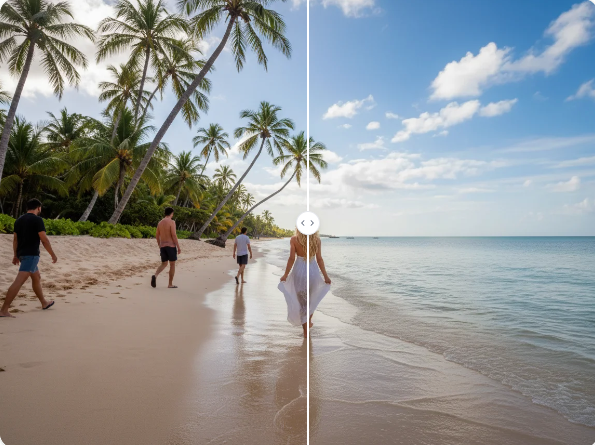
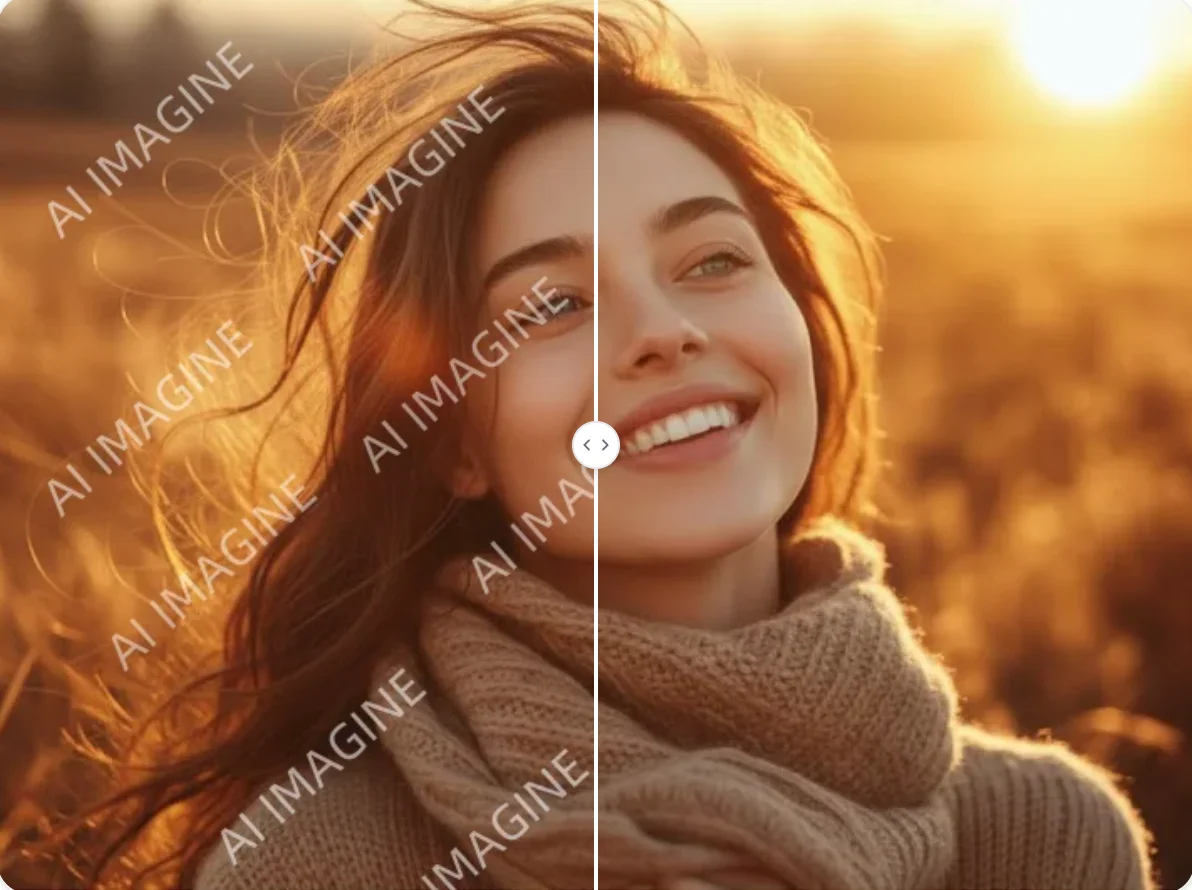
Upload a filtered image and use AI Photo Editor to create a cleaner, more natural-looking version. Reduce color overlays, beauty effects, and heavy edits while keeping the photo recognizable.