Upload
Upload the image you want to pixelate. AI Photo Editor supports common photo types and works well with portraits, screenshots, product images, and everyday photos.
 AI Photo Editor
Upload your image and apply pixelation to the whole photo or selected areas. Protect privacy, create mosaic effects, or design retro pixel art.
Upload your image and apply pixelation to the whole photo or selected areas. Protect privacy, create mosaic effects, or design retro pixel art.
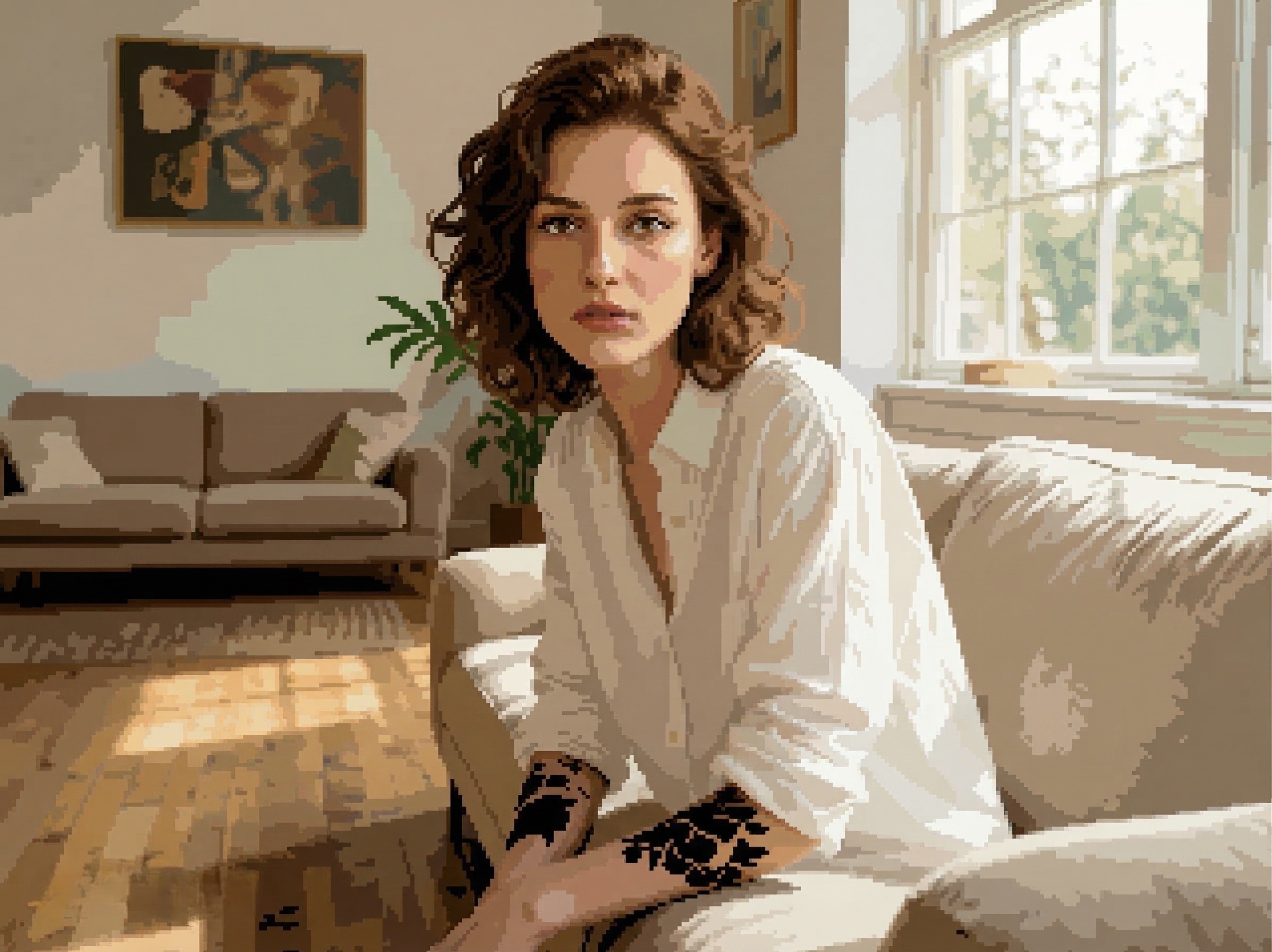

Upload the image you want to pixelate. AI Photo Editor supports common photo types and works well with portraits, screenshots, product images, and everyday photos.
Choose whether to pixelate the full image or a selected area, such as a face, license plate, text, screen, or background. Adjust pixel strength to control the final look.
Preview the pixelated result and download your high-resolution image for privacy protection, social sharing, design work, or retro-style creative projects.
AI Photo Editor helps pixelate private information such as faces, names, license plates, documents, screens, or background details. It is useful when you need to share images while keeping personal data less visible.
Pixelation is not only for privacy. With AI Photo Editor, you can turn photos into blocky, retro-inspired visuals for social posts, game-style artwork, profile images, memes, or creative design projects.
AI Photo Editor gives you a simple workflow to pixelate the full image or only selected parts. Adjusting the pixel size helps you create anything from subtle mosaic blur to bold 8-bit style effects.
Create visuals faster without design skills. Turn ideas into images, thumbnails, social posts, and creative assets in seconds.
Accelerate your creative workflow. Use AI Photo Editor to generate concepts, references, and visual directions, then refine them into production-ready designs.
Produce high-converting visuals on demand. Create ads, campaign visuals, and branded images quickly.
To pixelate an image means turning details into larger colored blocks. AI Photo Editor can apply this effect to the whole image or selected areas to hide information or create a pixel-art style.
Yes. You can use AI Photo Editor to pixelate specific areas such as faces, text, license plates, screens, documents, or background details while keeping the rest of the image clear.
Yes. Pixelating sensitive information can make private details harder to recognize before you share an image online. AI Photo Editor is useful for social posts, screenshots, and public-facing visuals.
Yes. AI Photo Editor can help transform photos into pixelated visuals with a retro digital look. You can adjust the strength to create soft mosaic effects or stronger pixel-art styles.
No. Upload your image, choose the area or effect strength, and let AI Photo Editor process the pixelation. You can preview the result and download it when ready.
AI Photo Editor is your go-to AI image toolkit for generating, editing, and enhancing photos and artwork.

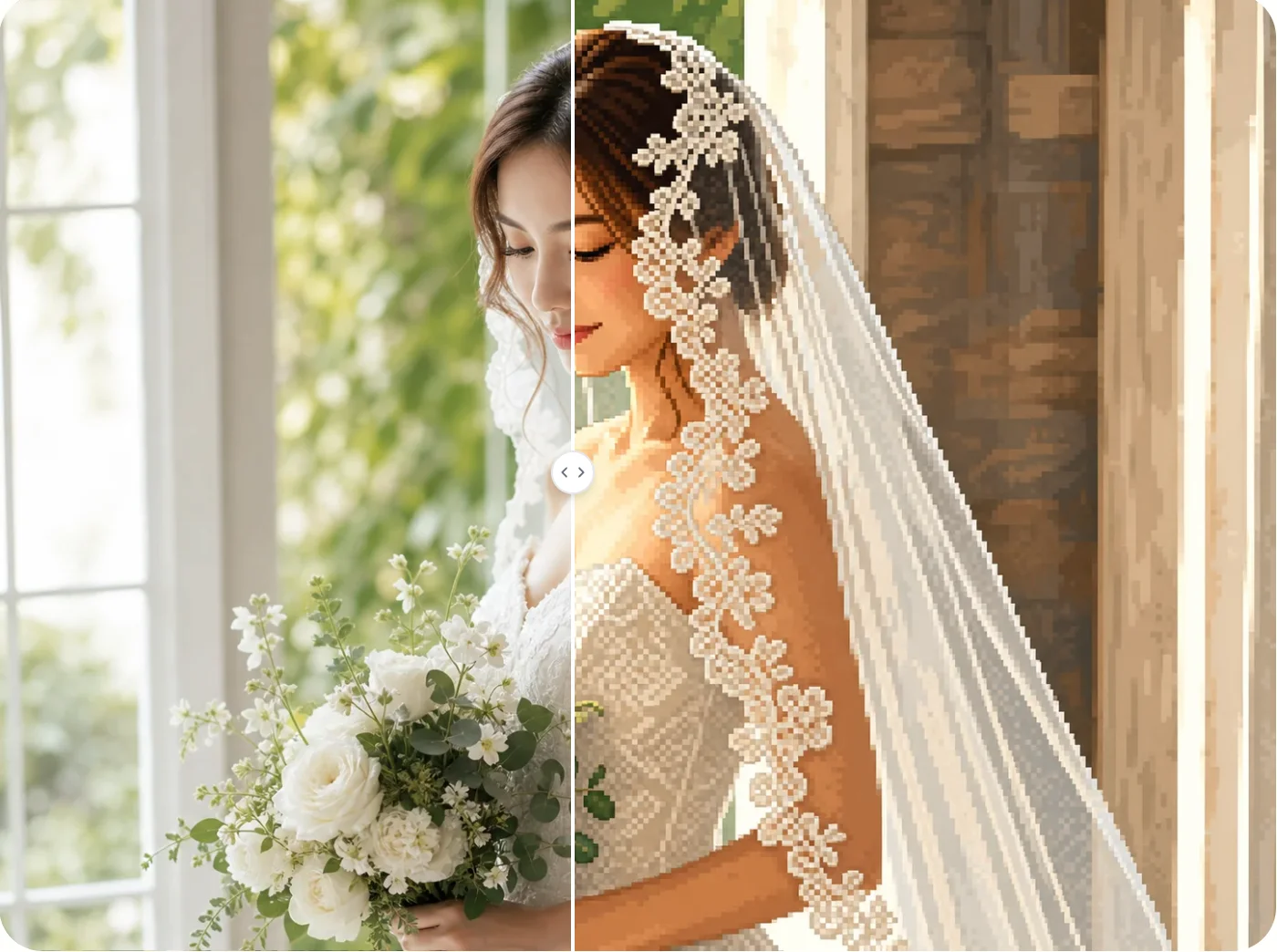
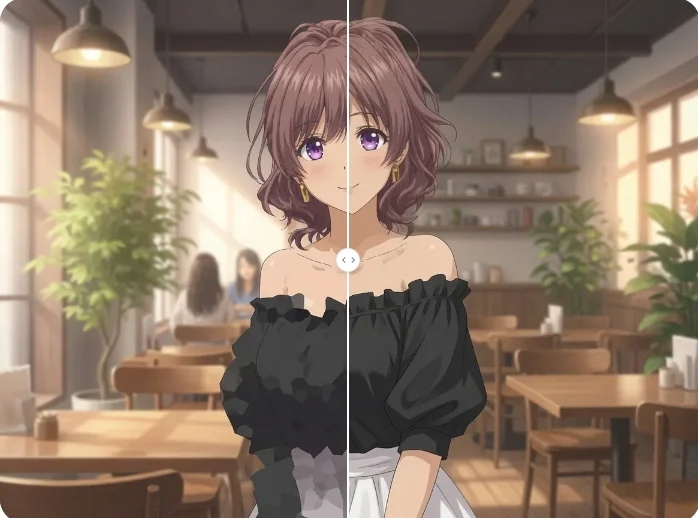
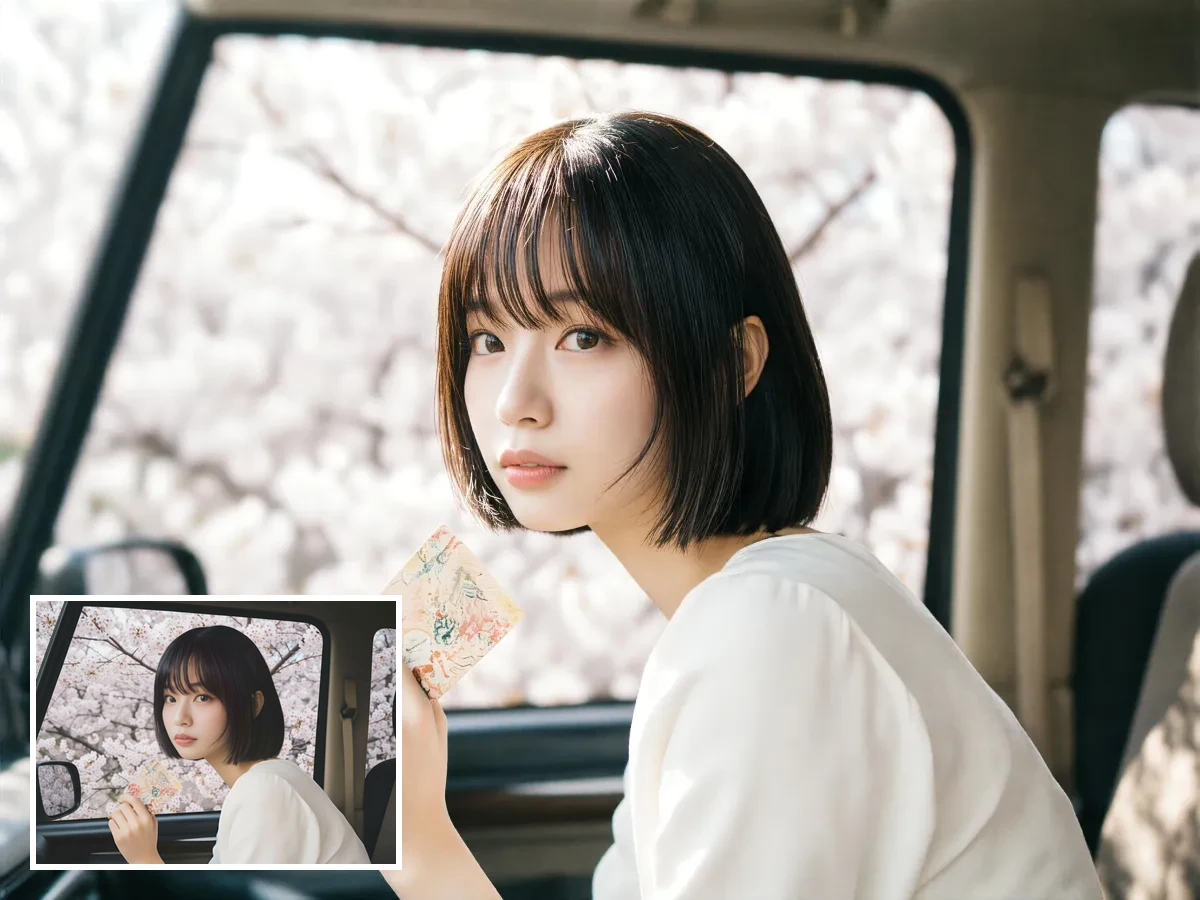
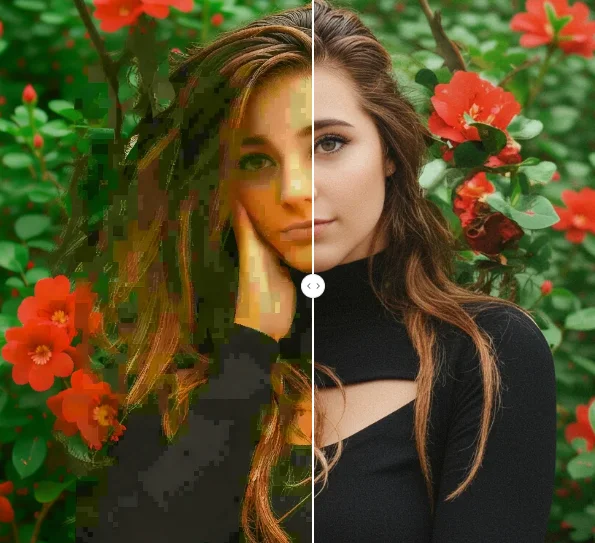
Upload your image and let AI Photo Editor pixelate faces, text, backgrounds, or the full photo. Protect privacy or create retro pixel-art visuals online.