Upload
Add the product or subject photo first, then upload the clean background where you want it to appear. Clear, well-lit images help preserve fine edges and surface details.
 AI Photo Editor
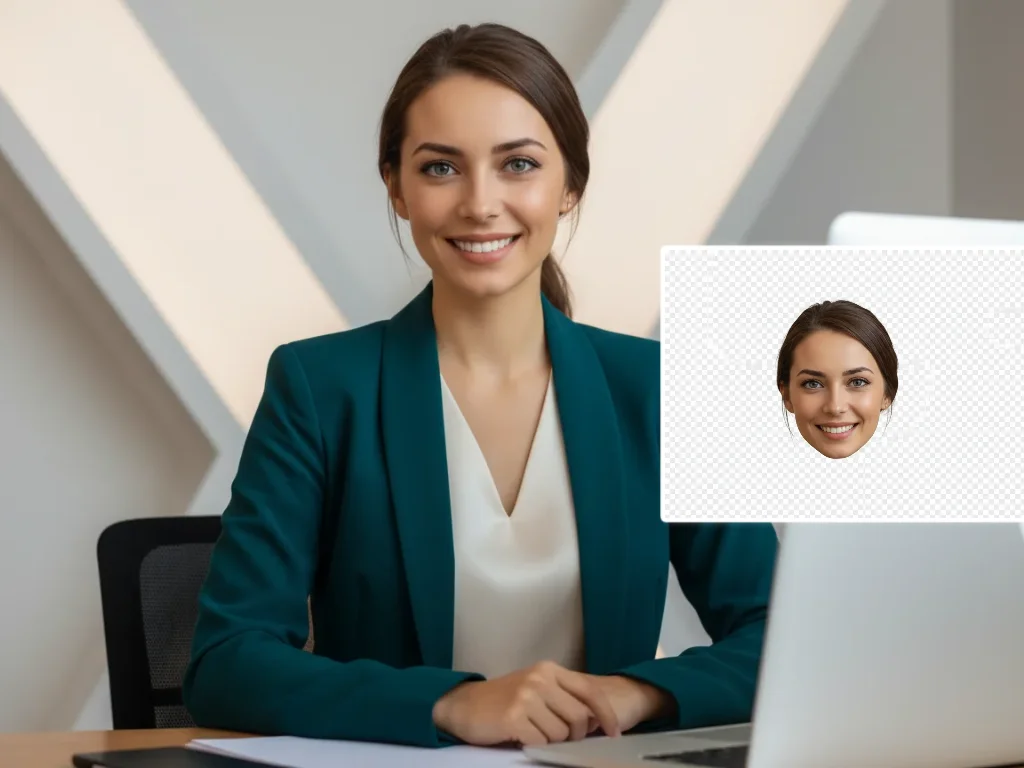
Upload a product or subject photo as the first image and a clean destination scene as the second. Extract the main subject, place it into the new background, and generate a coherent composite with matched scale, perspective, edges, lighting, and shadows.
Upload a product or subject photo as the first image and a clean destination scene as the second. Extract the main subject, place it into the new background, and generate a coherent composite with matched scale, perspective, edges, lighting, and shadows.
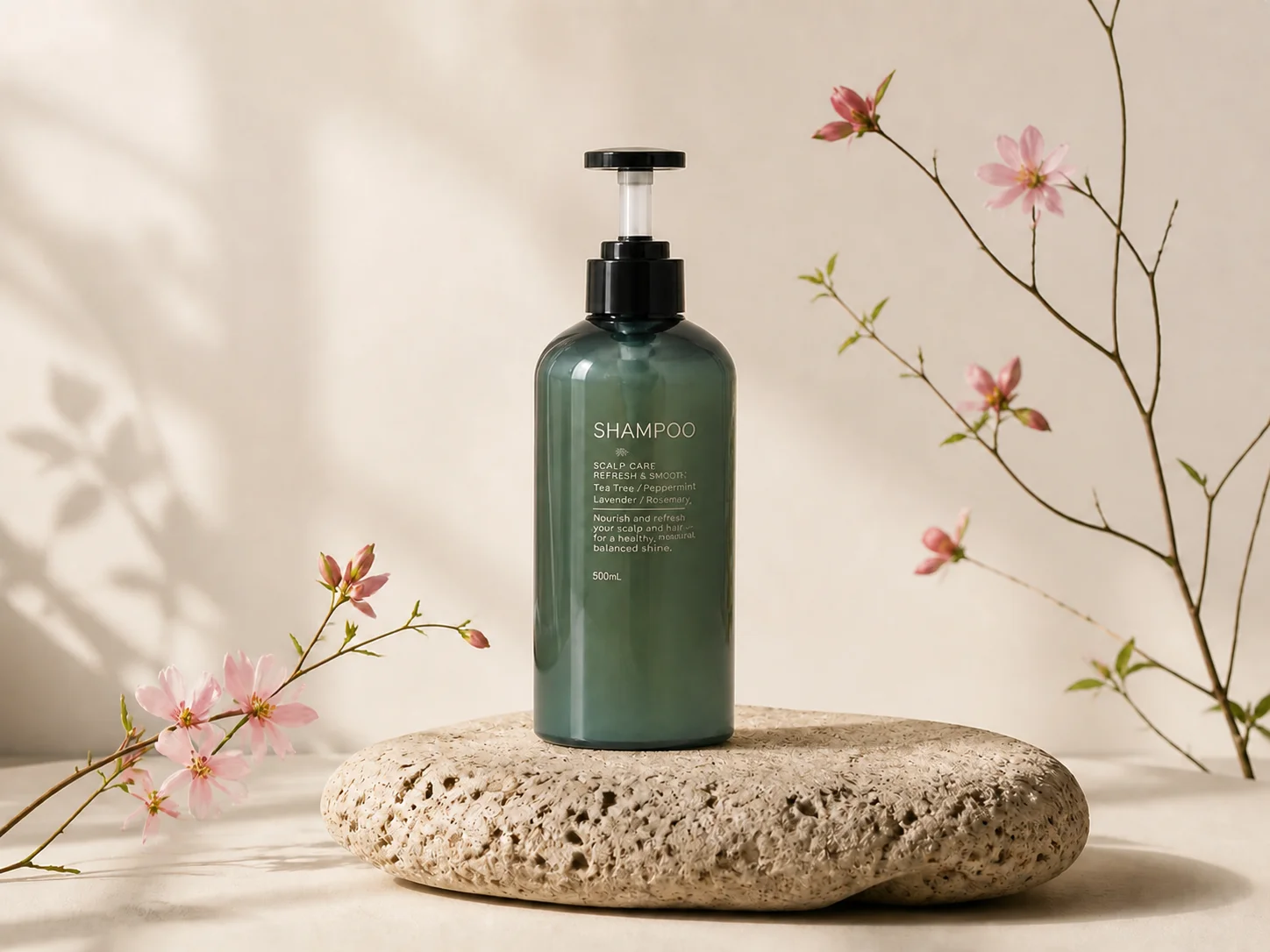
Add the product or subject photo first, then upload the clean background where you want it to appear. Clear, well-lit images help preserve fine edges and surface details.
Start the edit to isolate the subject from the first image and place it into the second image with a suitable position, size, perspective, lighting, and contact shadow.
Review the finished composite and download it for product listings, ads, social posts, presentations, mockups, or other creative projects.
Separate products, people, pets, or objects from their original surroundings while retaining recognizable shapes, fine contours, textures, and important visual details. Clean extraction makes the subject ready for a new scene without time-consuming manual masking.
The editor uses the first image as the subject source and the second as the destination background. It coordinates placement, scale, perspective, edge transitions, lighting direction, and shadows so the pasted subject belongs in the final composition.
Move the same product or subject into lifestyle scenes, promotional layouts, social graphics, mockups, posters, and presentations. A cut paste photo workflow makes it easier to adapt existing assets without reshooting every composition.
Turn separate subject and background photos into fresh social posts, thumbnails, collages, profile visuals, and creative scenes without building every mask by hand.
Explore layouts and visual directions by moving products, people, or objects between scenes while maintaining coherent composition and presentation quality.
Adapt product assets for campaigns, listings, ads, and branded visuals by placing the same subject into backgrounds suited to different audiences and channels.
A cut and paste photo editor extracts a person, product, pet, or object from one image and places it into another background while coordinating the subject's edges, size, position, lighting, and shadows.
Upload the image containing the product or subject first. Add the clean destination background as the second image so the editor can distinguish what to extract and where to place it.
Yes. You can extract a product from its original photo and place it into a lifestyle scene, studio setup, promotional layout, or other suitable background for listings and campaigns.
The tool is designed to coordinate scale, perspective, edge transitions, lighting direction, and shadows. Results are strongest when both uploaded images are clear and have reasonably compatible viewpoints.
You can upload up to five reference images. For the standard cut-and-paste workflow, use the first image as the subject source and the second image as the destination background.
AI Photo Editor is your go-to AI image toolkit for generating, editing, and enhancing photos and artwork.
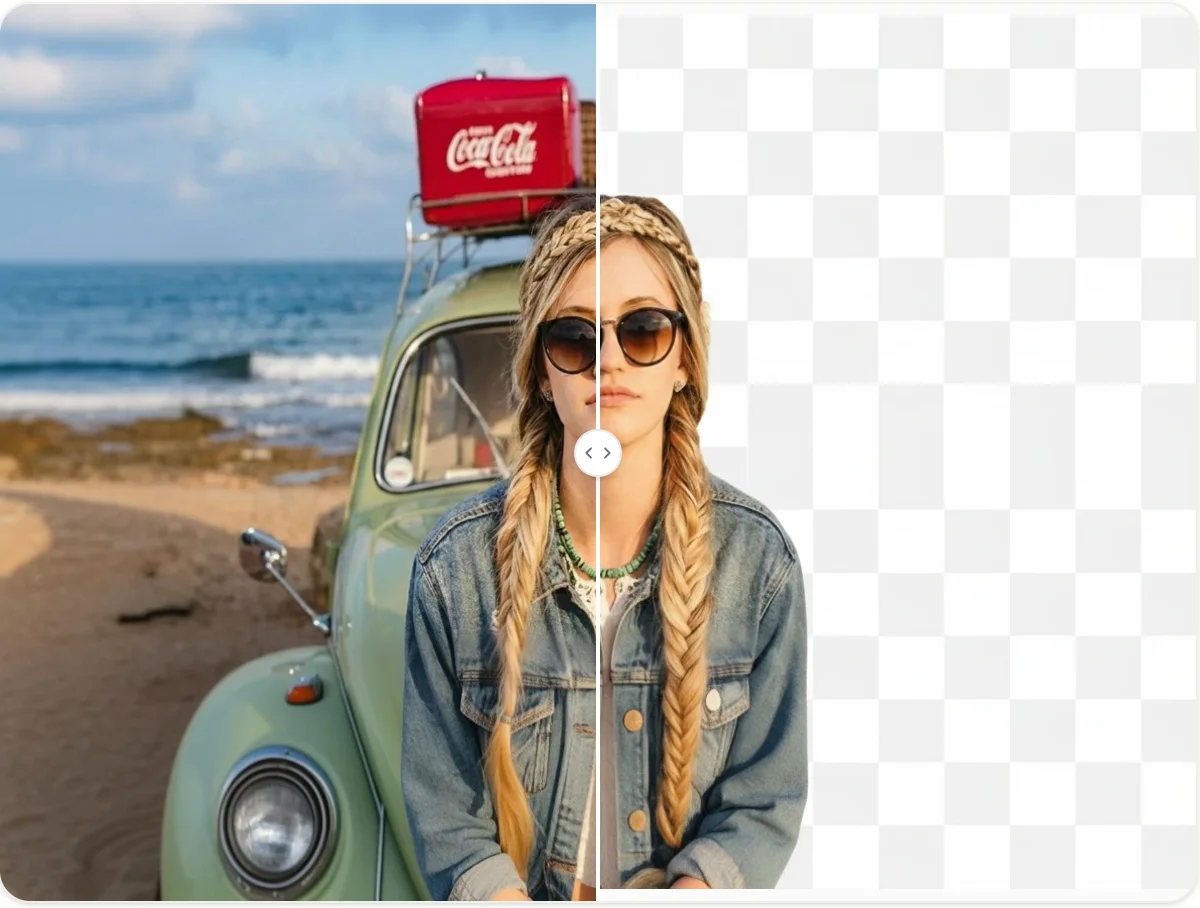
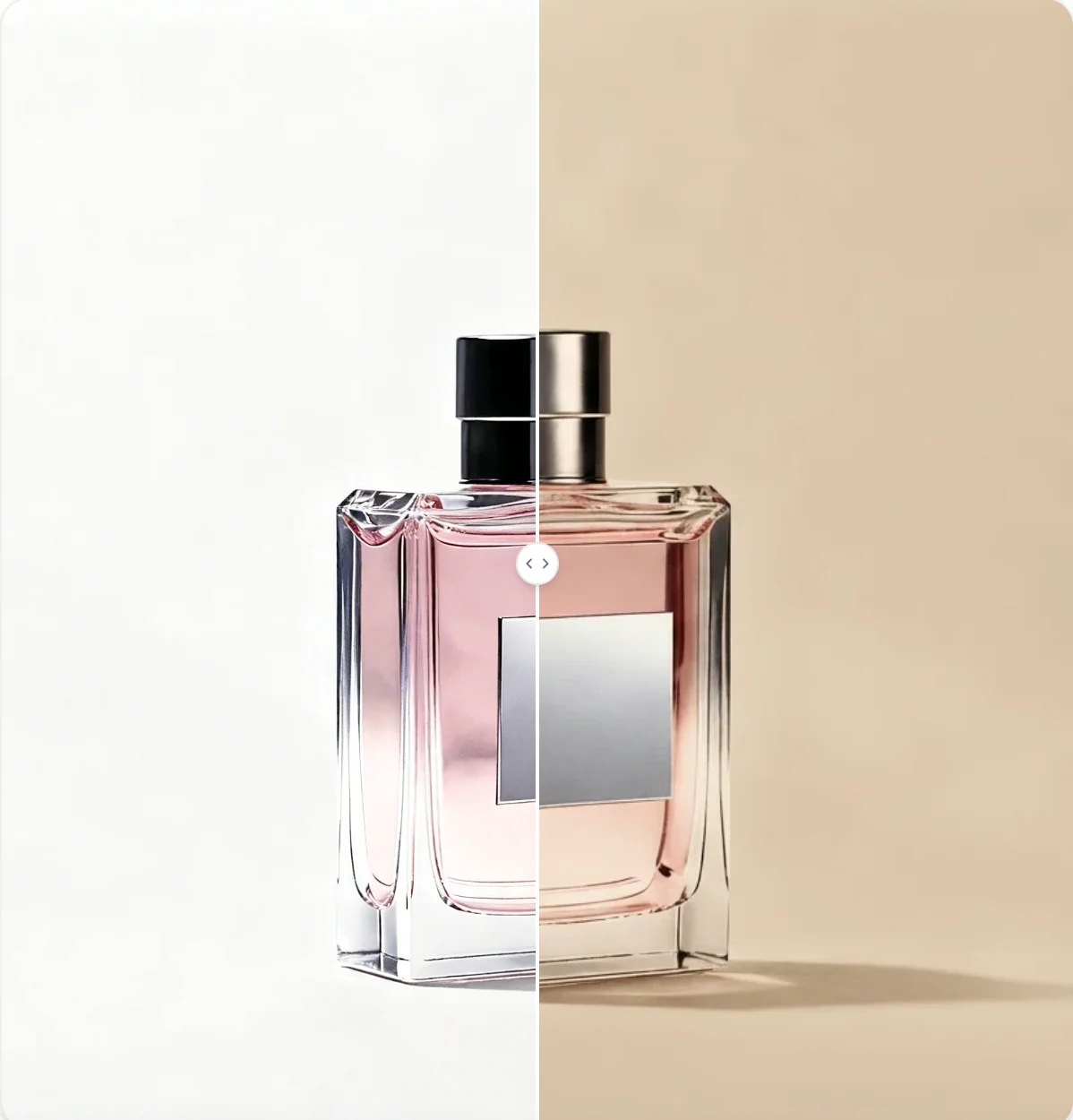
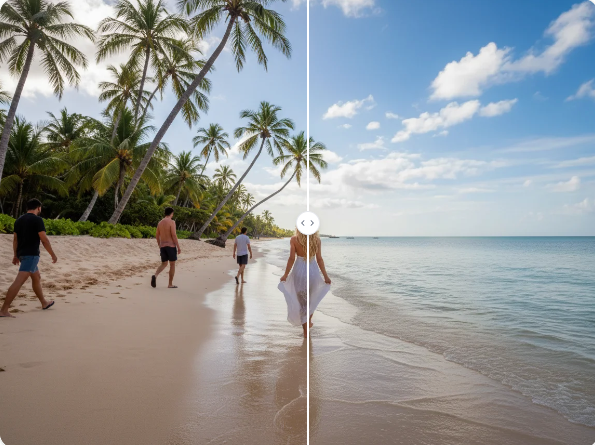
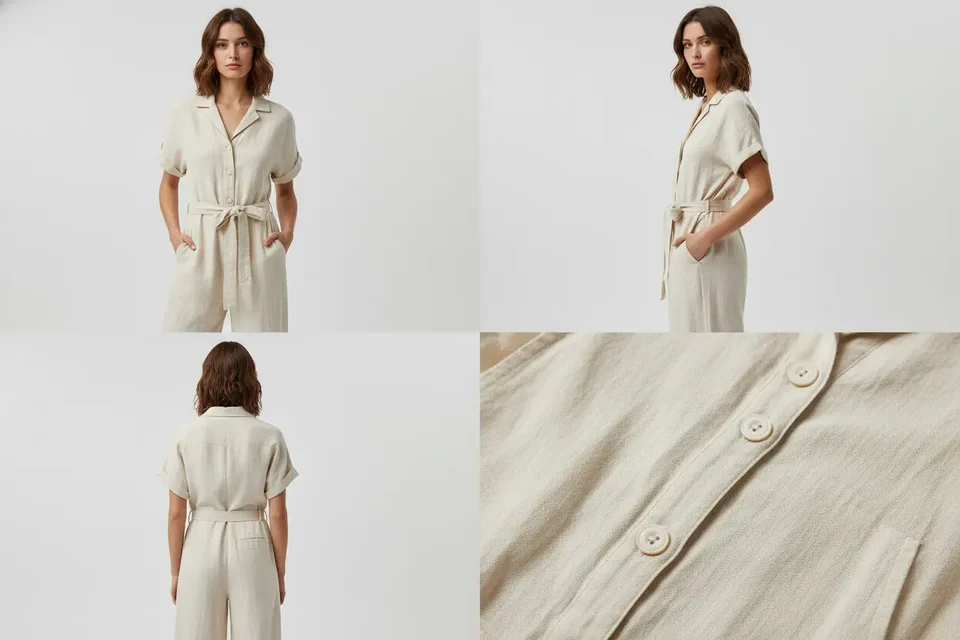
Upload a subject photo and a destination background, then generate a polished composite with natural placement, edges, lighting, and shadows.